GPSLog Labs Blog

GPSLog Labs Blog

Dec 28 / 5:18pm

Updates for December 29th

A few little enhancements to GPSLog Labs that have been made lately:

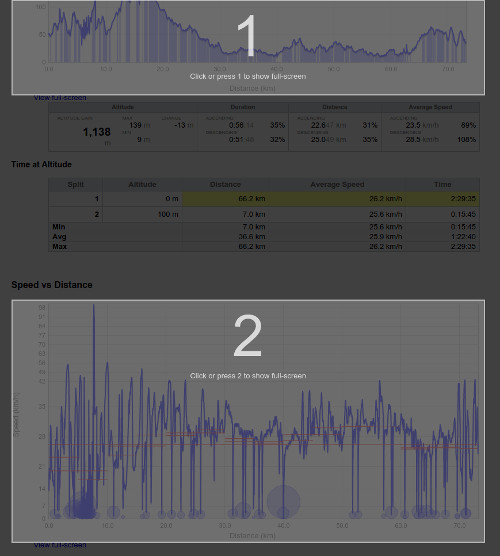
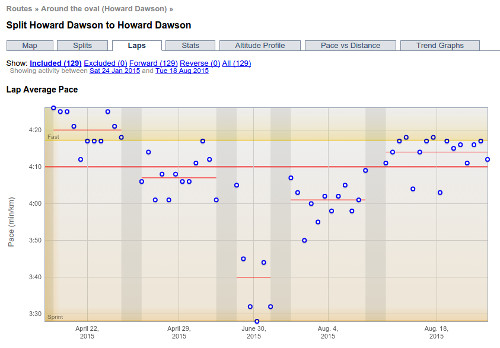
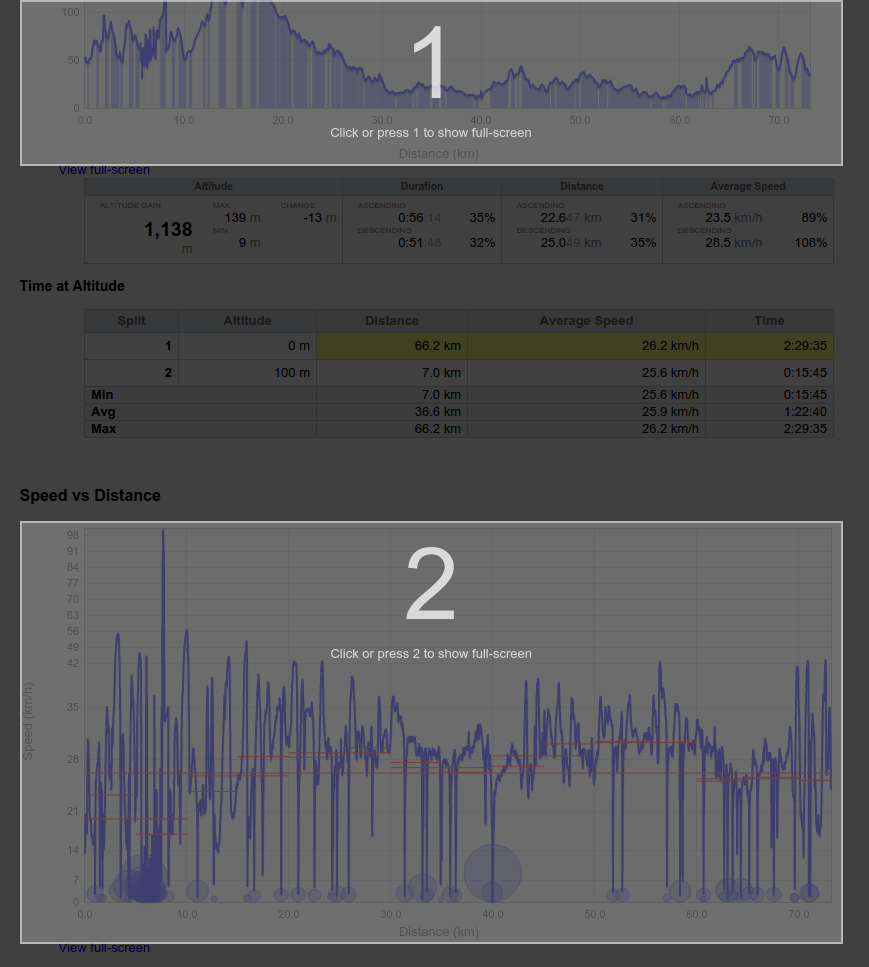
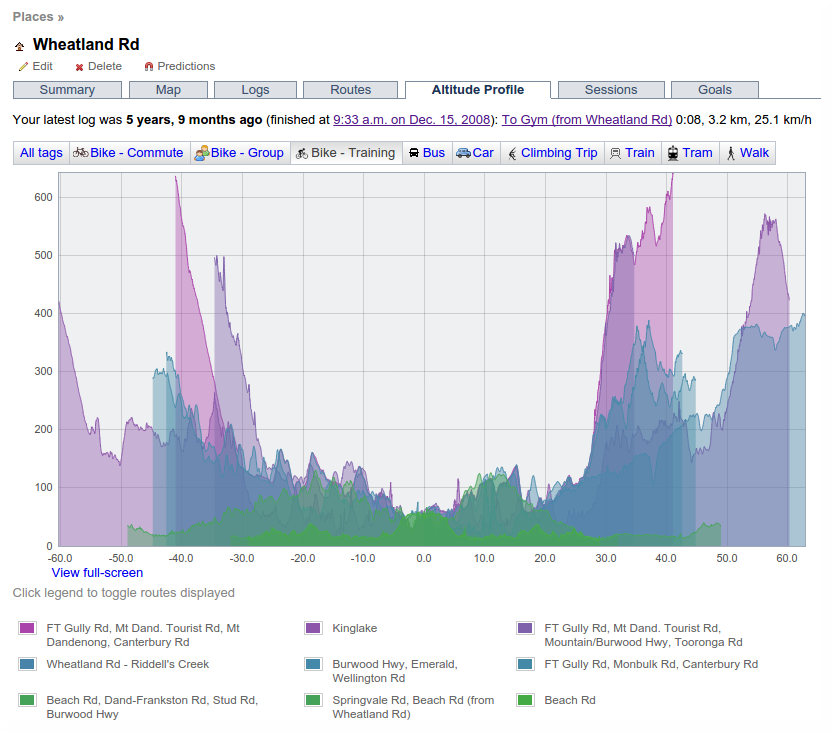
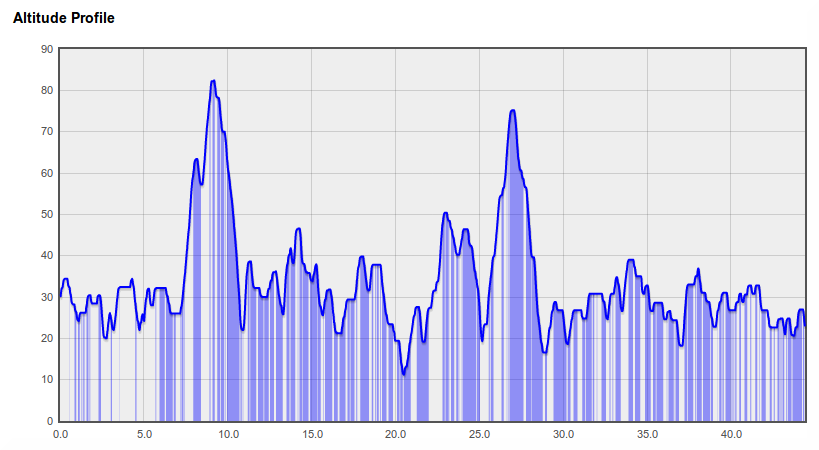
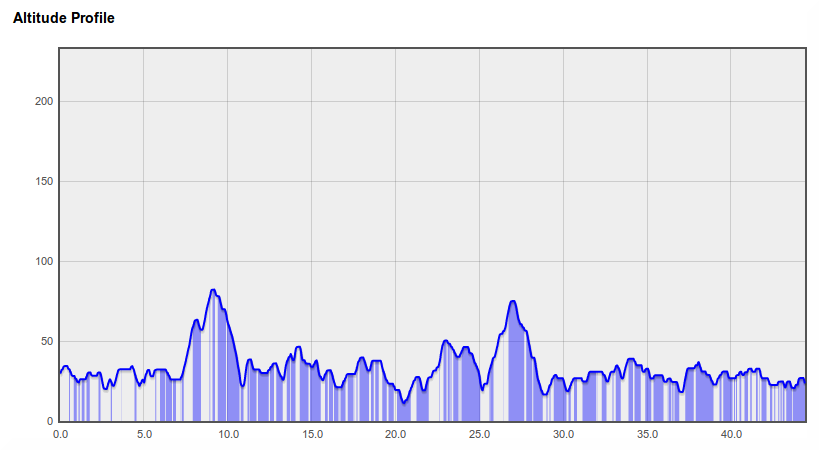
  • Many graphs now have a "View full-screen" link like the maps. This will let you really zoom into the details!

  • A few pages on the site now take advantage of wider screens if you have one.

  • Standard splits displayed on the log detail Comparisons tab now show extrapolated times if they're a little short (within 10% of the split distance). This is handy if you've got a route that's pretty close to a standard distance and you'd like to see how it compares to other routes.
    The rank of the activity is displayed in the comparison table too, and the standard split times are now also displayed on the distance finish time predictions graph.

  • Uploaded log files can now be deleted in bulk from the device log files page. This is handy if you're logging via an iPhone app and extra files are included in the zip files you email.
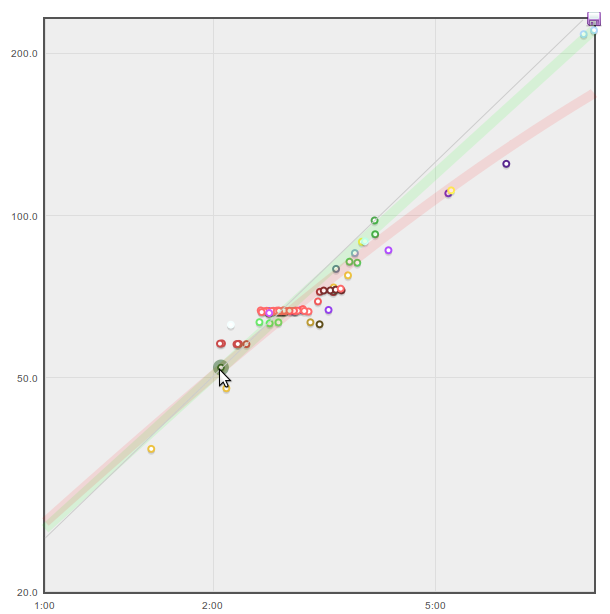
  • The trend graphs (for Tags, Goals, Routes) have a line of best fit added, as well as displaying the overall average.
  • The Distance vs Time graphs on the Tag and Goal detail pages have a new Group by tags option in addition to the group by route and age options.

  • The map showing all GPSLog Labs users' places now clusters icons together and shows how many places have been added in each region.

  • The remaining battery life for your device warning on the home page now gives a range in it's estimation of how much time is left.

Filed under  //  changelog   graphs  
Feb 20 / 6:16pm

Updates for February 21st

I've just added a really useful feature to GPSLog Labs: The "Comparisons" tab for an activity page now actually shows some useful comparisons in a "dashboard" format.

Screenshot-log-compare-route

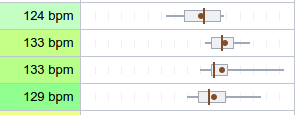
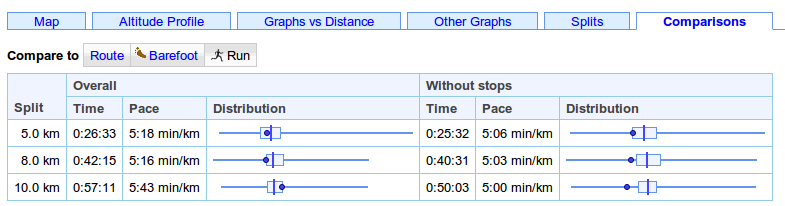
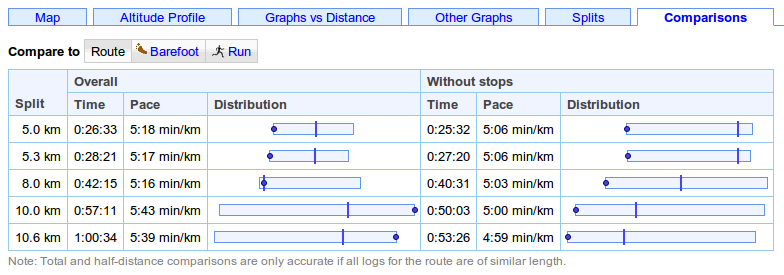
For each of the "standard split" distances (5 km, 5 miles, 10 km, etc.) the speed/pace and time for this log are displayed and compared to that for the other activity on the same route and/or sharing the same tags using a box plot.

The above screenshot shows the speeds for that particular run using solid dots on the box plot, and indicates it was the fastest for that route when stops are removed, but that there was a long stop somewhere between the 8 and 10 km splits that made it the slowest over those distances (the smallest value is on the left of the graphs, so rightmost is best for speed and leftmost is best for pace.)

Comparing it to all the activity tagged with Run, not just along that particular route shows it was in the top 25% (after taking out the stop):

Screenshot-log-compare-tag

The route comparison shows two extra splits that are not available when comparing to the tag, the total distance (10.6 km in this case) and the half-way point (5.3 km). These assume that all activity on the route is about the same length, so aren't meaningful for a tag and may also not be very useful if you have a route which varies a lot in length.

Some other recent updates to the site:

  • Pages with many tabs will have some of the tabs hidden to save space. Click the "more >>" button to show the rest.

    Screenshot-tab-slider-1

    Screenshot-tab-slider-2

  • The unknown routes page now lets you filter by tag.

  • When setting up a task for a goal, you can now filter the possible routes by place.  This means that you can quickly find a route of the desired distance to complete the task and aren't overwhelmed by routes from places you don't need.

  • There are a couple of QR Codes on the site now to help get the urls into your mobile device.  Scan the following QR code to go to the mobile version of GPSLog Labs, for example.

    Qrcode

    There is also a QR code for the unique upload email address for your device on it's detail page.

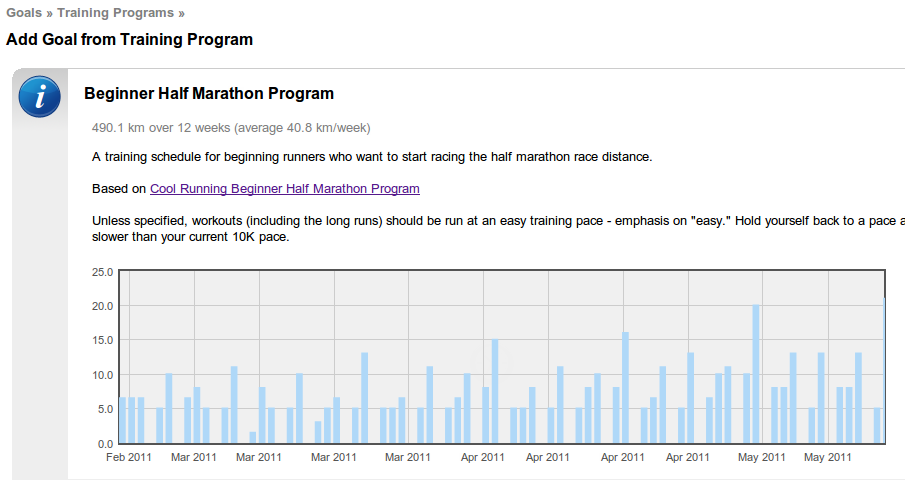
  • When adding tasks from a training program to a goal, or creating a new goal from a training program, you can now see a preview graph of the tasks involved:

    Screenshot-add-goal-tasks-prev
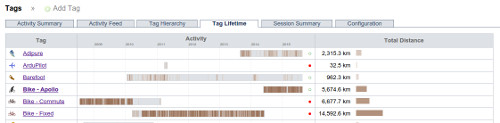
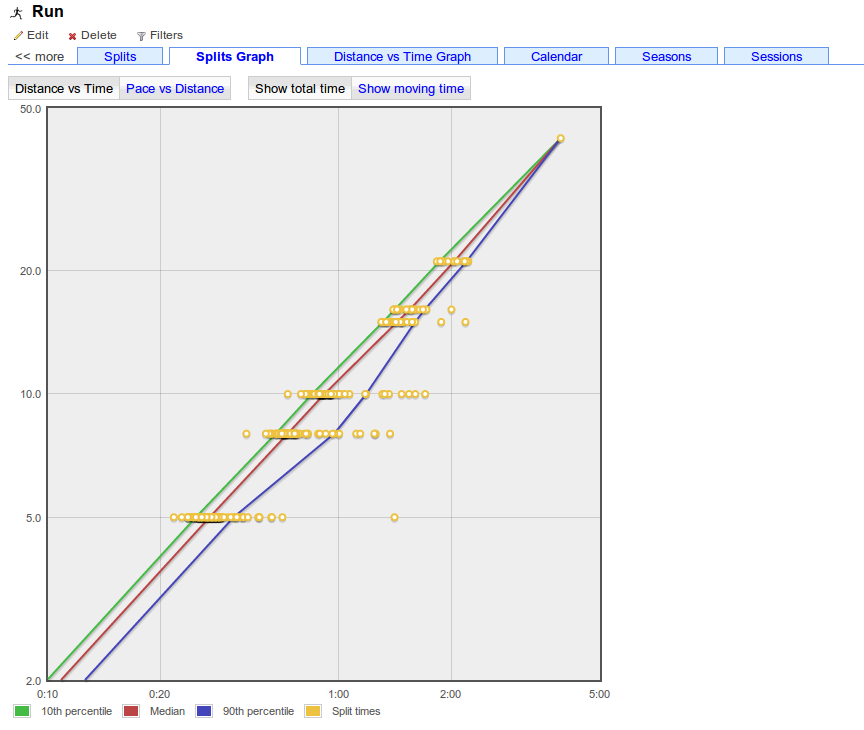
  • The tag detail page has a new Splits Graph tab that shows a graph of all the activity speeds/times at standard split distances, together with lines indicating the distribution (10th,50th,90th percentiles).

    Screenshot-tag-splits-graph
  • The standard split distances now extend from 50km to 300km (50mi to 200mi) to make them more useful to cyclists and longer distance activities.

As always, please send feedback and suggestions to feedback forum.

Filed under  //  changelog   comparisons   goals   graphs   qr codes   splits   tasks   training program  
Nov 30 / 8:49pm

Updates for December 1st

Recent changes in GPSLog Labs have focused on improving the log file editing process:
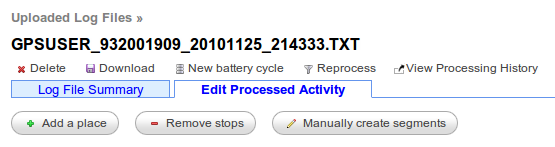
  • The Add a Place, Remove stops and Manually create segments commands on the Log File edit page have been changed from menu options to more prominent buttons:

    Screenshot-rawlog-edit-buttons


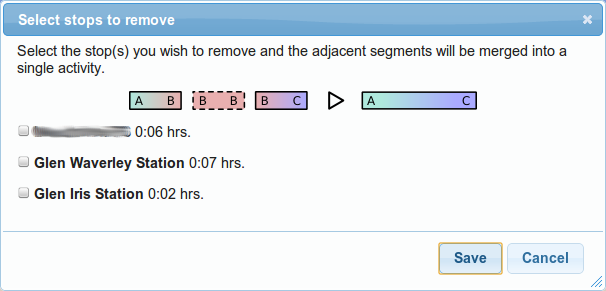
  • Remove stops is a new command that allows you to quickly and easily remove unwanted stops from a Log File. Multiple stops can be removed in one step which is easier than removing each stop or cut in turn.

    Screenshot-remove-stops


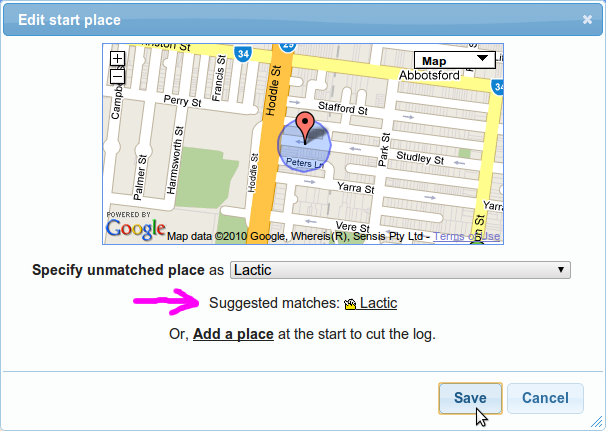
  • When specifying an unmatched place, previous activity is now used to provide a suggestion of likely places it could be from those in the neighbourhood of the start location:

    Screenshot-unmatched-place-sug


  • The Reprocess confirmation page has also been redesigned and the page sequence after queuing a file for reprocessing has been improved.

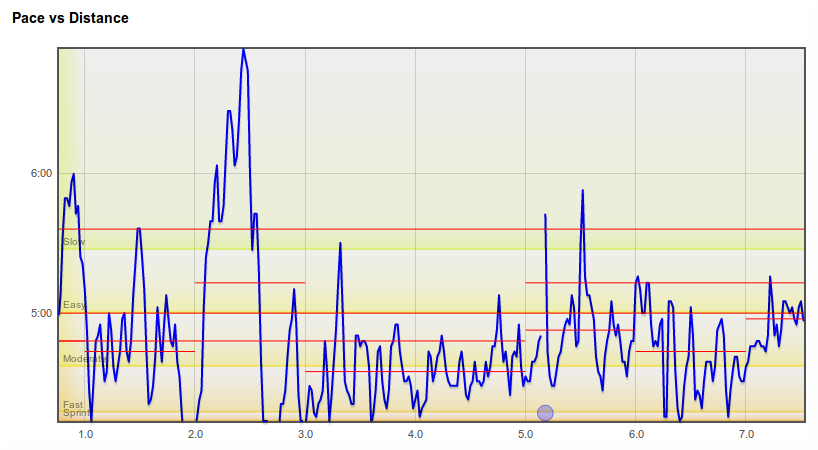
  • The Speed/Pace vs Distance graphs on the activity detail page (Graphs vs Distance tab) now have a new "scaling" algorithm that isn't as extreme and should make pace graphs easier to read.

  • There's also a new link at the bottom of the route Altitude Profile tab to show all altitude profile thumbnails for all logs. This is useful for circuits so you can easily check they are all correctly marked as forward or reversed direction.
Filed under  //  changelog   editing   graphs   processing  
Sep 1 / 10:43pm

Updates for September 2nd

  • Support for the Nav N Go iGO 8 track format has been added. This looks like a pretty good app, but has a terrible name, not that I can talk...

  • Behind the scenes there's a new storage engine which will be able to handle a lot more growth in uploads.  Let me know if you notice anything odd.

  • There's a new "smoother" design on the forms throughout the site:

    Screenshot-new-wizardstep-desi

  • The goal detail page now has a map tab.

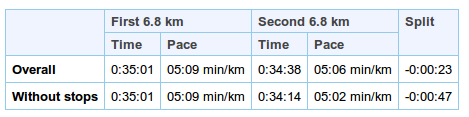
  • The activity "Comparisons" tab has a new statistic: The split for the first and second halves of the activity. The theory is that if you've paced yourself properly and haven't slowed as you got tired this should be 0 or even negative.

    Screenshot-negative-split

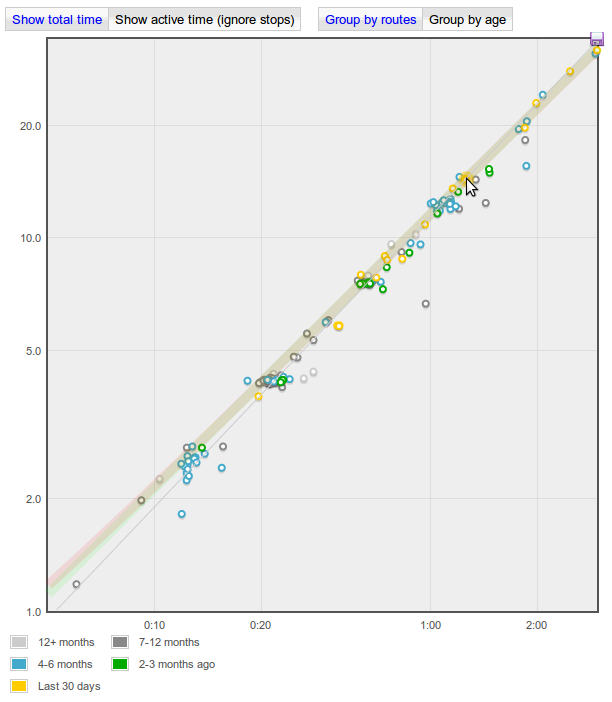
  • The Distance vs Time graphs on the tag detail and goal detail pages now have options to show the logs group by route (the default, and previous behaviour) or by "age". This will let you see how your performance has changed over time:

    Screenshot-dist-vs-time-graph-

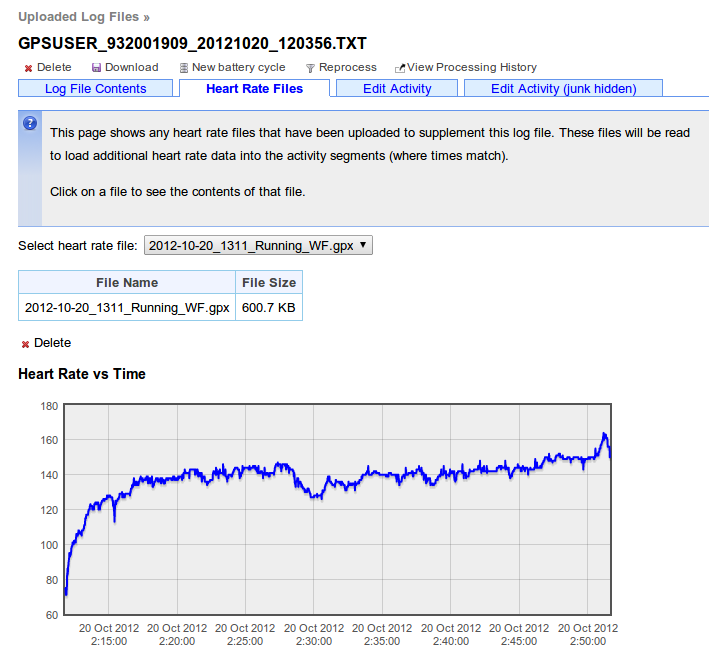
  • And, finally, it's now possible to upload a heart rate data file from a separate heart rate logger and have it stored together with the appropriate activity.

    On the activity detail page, there's a little link in the right hand side panel to "Upload Heart rate data file":

    Screenshot-upload-hr-link

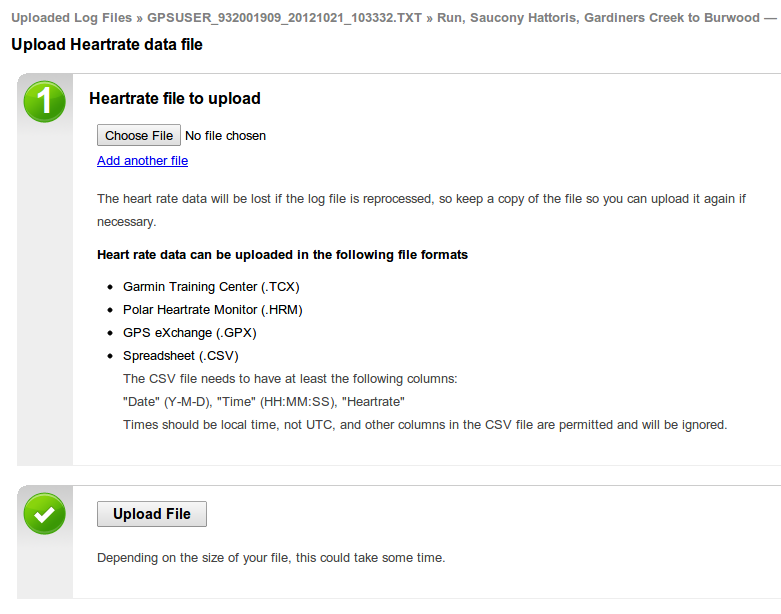
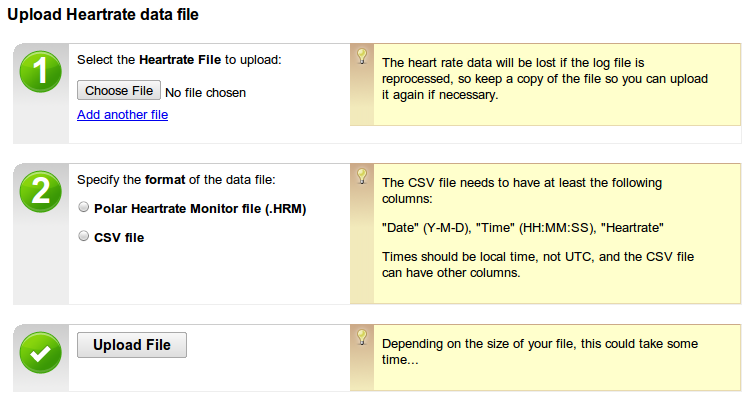
    Clicking that will give you a form where you can upload one or more heart rate log files in either Polar HRM or CSV formats:

    Screenshot-upload-hr-form

    The original files aren't stored on the GPSLog Labs server though, so if you reprocess the log file (add a place, merge segments etc.) then you'll have to re-upload them.

- Tom
Filed under  //  changelog   graphs   heartrate   igo8   stats   upload  
Aug 16 / 8:04pm

Distance Finish Time Predictions

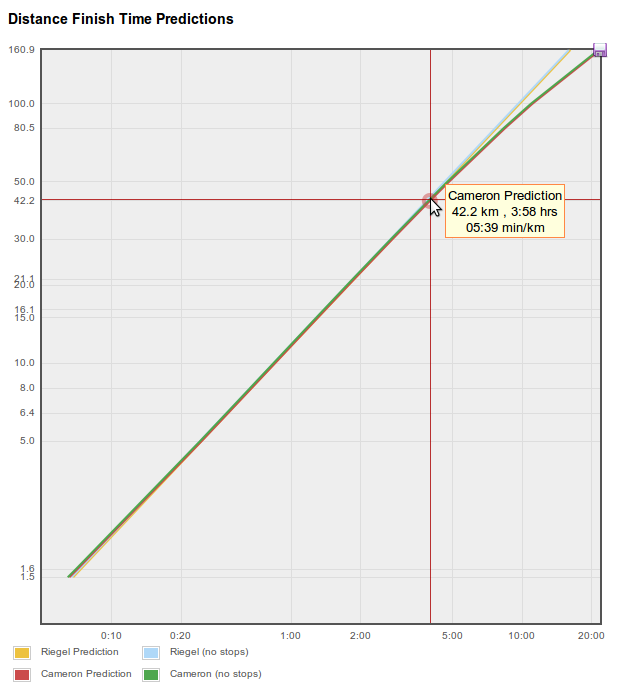
I've just added an experimental feature to GPSLog Labs to provide estimates of the finish times for different distances based on the activity you've logged.  For example, this can take your pace from a 10km run and tell you how long it would take to do a half marathon, or take a target pace for a long distance and tell you how fast you should be aiming to do shorter training runs.

This is based on formulas developed many years ago by Peter Riegel and Dave Cameron by fitting a curve to the world record times for various distances. How well these apply to non-elite athletes is something I'm curious about, but the theory is that if you put 100% into running 10km, you'll do it in a certain time. If you put 100% into running 5km, you'll be able to go a certain amount faster as you only have to last half as long and vice versa for 20km. The ratio of speeds at different distances should be roughly right even if you're not breaking world records.

There are two places where this now appears in GPSLog Labs, the first is on an activity detail page's Comparisons tab and it extrapolates the pace (with and without stop time taken into account) to other distances:

Screenshot-log-detail-dist-fin

The estimates using the two formulas are quite close until you get to very large distances, but you will hopefully be able to judge which is more appropriate for your activity.

The second version is found on the Distance vs Time Graph tabs of the Tag detail and Goal detail pages.  Move the mouse to set the speed to be extrapolated and the prediction curves will be overlayed on your actual recorded activity to see how they compare.  The thin gray line is a linear prediction assuming your speed/pace won't vary as the distance increases or decreases. The red line uses Peter Riegel's model and the green line uses Dave Cameron's model. These estimates are often very similar and overlap simply appearing gray.

Screenshot-tag-dist-time-w-pre

As far as I know, these formulas were developed for running, but the curves may be useful for other activity as well.

I'm very interested in knowing how this works for people, there are many other sites on the internet that will perform the same extrapolations if you manually key in your distance and time, so it's not just me interested in playing with this stuff!

Filed under  //  goals   graphs   predictions   stats   tags  
May 17 / 5:39am

Goal predictions

I've just enhanced the GPSLog Labs goal overall progress graph so that it now shows a prediction of the likely result based on what you've achieved so far (hopefully that's motivating, not depressing!)

Screenshot-goal-prediction

It feeds your past past weekly totals into a Monte Carlo simulator to come up with a range of possible outcomes which are added to the graph.  The fainter gray lines show the upper and lower estimates, while the darkest gray lines are along the 1st and 3rd quartiles (i.e. 50% of the predicted outcomes will fall between those lines.)

This will work best for longer term goals, since it's using weeks as the unit of time, please let me know if it's not working well for your goals and I'll see what I can do.

-- Tom

Filed under  //  changelog   goals   graphs  
Mar 7 / 2:30am

Heart rate logging

Support for heart rate logging in GPSLog Labs has been added for Garmin devices that use the Garmin Training Center format (i.e. .TCX files).

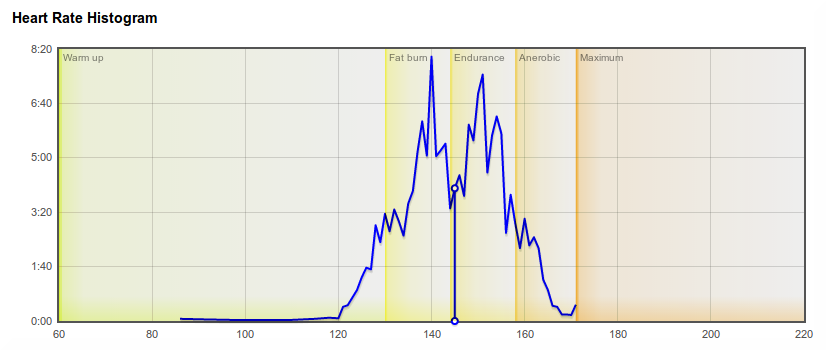
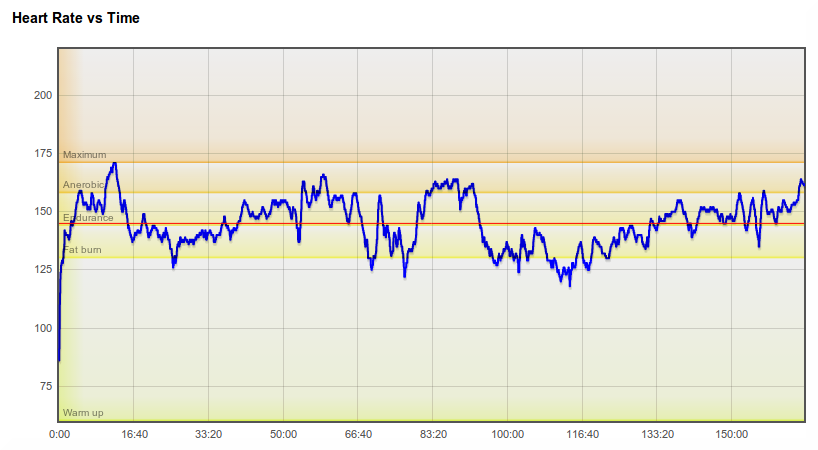
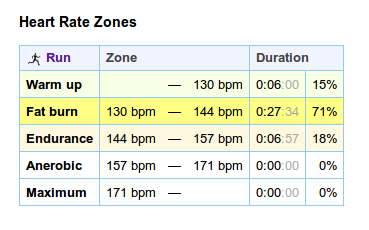
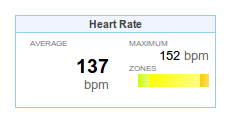
You can see graphs of your Heart Rate vs Time and a histogram of your heart rate on the activity detail page:

0screenshot-heartrate-graphs-hr

 
Screenshot-heartrate-graphs-hr

Heart rates will be repeated to fill in gaps if the readings occur less than once per second, up to a maximum of 5 minutes.

If you have a device that logs heart rates, and the graphs aren't showing up in GPSLog Labs, please let me know and I'll add support for it.

Note that this will only work for logs out doors where a latitude and longitude is recorded with the heart rate, so if you're using something like a Garmin EDGE705 in indoor mode, you won't be able to view your activity or heart rates.

If you don't have a GPS logger that records your heart rate at each point, you can still record average and maximum heart rates against your activity manually (i.e. based on a non-logging heart rate monitor strap.)

To switch heart rates on manually:

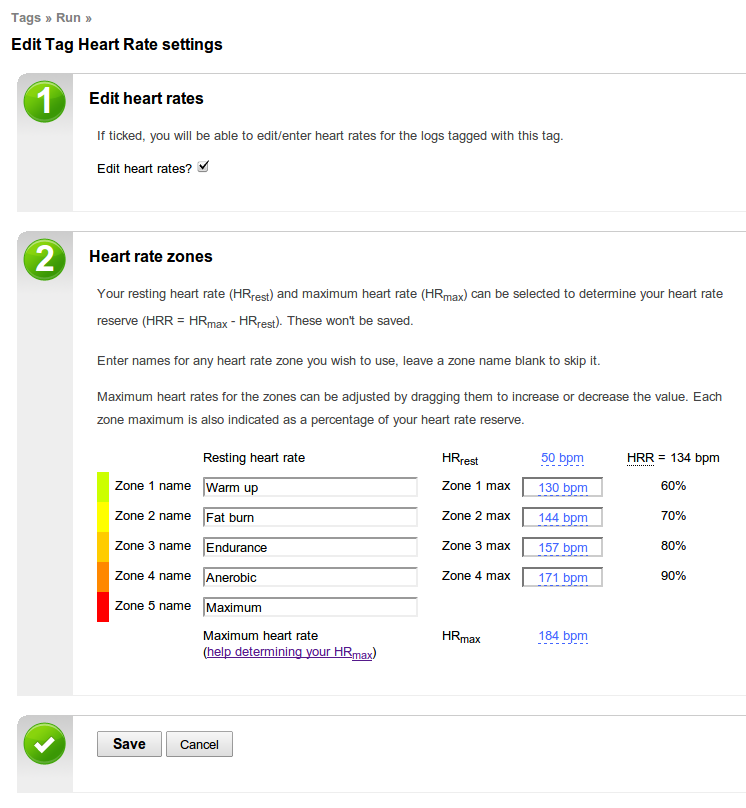
  1. Go to tags, and select a tag you want to record heart rates for (e.g. Running or Bike)
  2. Edit the tag, click the "Edit heart rates" checkbox.
  3. Now, when you go to activity tagged with that tag, you'll see the "heart rate" tab (this usually only shows up if your logger supports heart rates.)
  4. On that tab, the average and maximum heart rate values will show "edit", click that, type in the heart rate and click the save button.
    Heart_manual_1

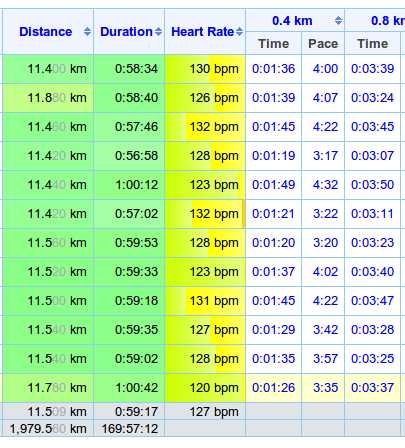
Once the system has heart rates recorded against your activity (either automatically or entered manually) they will show up in summary and comparison tables and graphs for routes and tags.

-- Tom

Filed under  //  changelog   devices   graphs   heartrate  
Feb 9 / 11:17pm

Embedding maps and graphs in your site

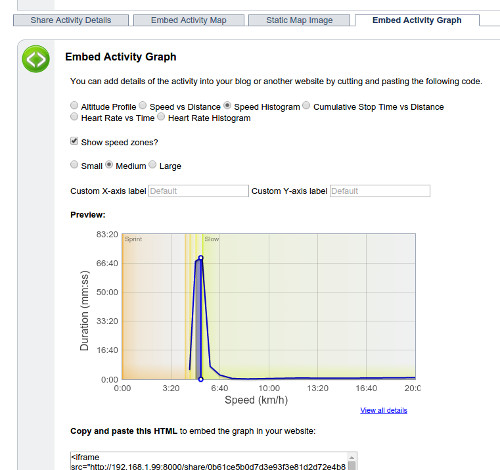
In addition to sharing GPSLog Labs content via Twitter, Facebook, email and IM, another option is to embed maps and graphs of your activity in your own website.

To do this, you'll need to enable sharing for the content and then you'll be provided with a snippet of HTML you can cut and paste into your own website.

For example, to embed a map, you'll see the following on the Share Log page:

Screenshot-embed-map

You can customize the size of your map and the whether you want stop icons to be drawn or not.  You'll see a preview on the right and when you're happy with it you can cut the generated HTML code and paste it into your website. To embed a graph of your activity, follow the same steps.

Tip: It is possible to customize the size of the embedded map if the standard sizes are not appropriate by editing the HTML and adding &width=1234&height=1234 to the iframe src url, and also updating it's width and height attributes to match.

Note that if you Disable sharing for your activity, it will no longer be visible on your site, even if you re-enable sharing again as the secret URL will be different.

-- Tom

Filed under  //  changelog   embedding   graphs   maps   sharing  
Feb 8 / 3:31am

Sharing your logs

By default all the activity you upload to GPSLog Labs is private and visible only to you.

If you want to share maps and graphs of your activity with your friends click the Share button to enable sharing:

Screenshot-sharing-1

Then click the Enable sharing button:

Screenshot-sharing-2

This will generate a publicly accessible detail page:

Screenshot-sharing-3a

Which will look like this (actual link):

Screenshot-sharing-4


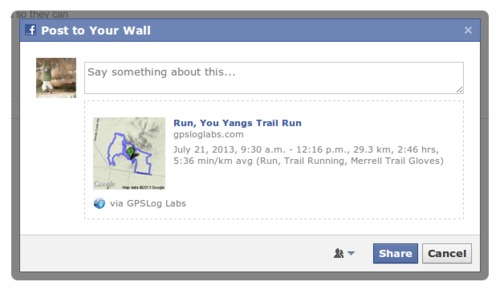
You can share the URL to this page on Twitter, Facebook, email, IM or wherever you like, for example, clicking the Share on Facebook link will open a window which will let you customize a message and publish a link to your activity on your Wall:

Screenshot-sharing-5

At any time, you can click the Disable sharing button to hide the activity if you change your mind.

Screenshot-sharing-3b

Any shared content will be indicated by a "sharing" icon 

Shared
and will be listed on the Shared tab so you can review it.

Screenshot-sharing-6

I'll be adding the ability to share more kinds of content soon but if you have anything you'd like to see in particular, please let me know.

-- Tom

Filed under  //  changelog   facebook   graphs   maps   sharing   twitter  
Dec 6 / 8:42pm

New GPS Track Filters

GPSLog Labs now has a powerful and customizable filtering feature to clean up errors in your logs caused by bad GPS signals.

There is a new menu option on the log detail page that will let you edit the filters applied to that log:

Screenshot-filter_menu

The following graph comes from a log recorded while running and shows the kind of noisy data that is often present.  The incorrect speeds mess up the maximum speed, average speed and distance stats and often correspond to a bad trace on the map too.

Screenshot-unfiltered

Discard filters

The first filters you can choose from will discard invalid points from your log and then interpolate the speed and course between the remaining points.

Screenshot-add_discard

After applying those filters, the speed vs time graph looks a lot better (discarded points are colour-coded to match up with the chosen filters):

Screenshot-discard_only

Post filters

The second filtering stage applies an average function to the newly cleaned up data.  Smoothing the speed graph will give you a more reliable average and maximum speed statistic and also improve the distance and time split data, but won't clean up the trace on the map or affect the total distance.

Screenshot-add_post

The original speeds are shown on the graph below as a light blue line, and after applying a median filter, the thick blue line has been smoothed (no discard filters were applied for this graph). 

Screenshot-post_only

This graph shows the final results when both discard and post filters are applied:

Screenshot-filtered

Existing logs

The new filters will only take affect for new uploads, existing logs will retain the data from the old filter that GPSLog Labs used to apply until they are reprocessed.

Also, the discarded points from the old filter will no longer be shown on the Speed vs Time graph on the log detail other graphs tab.  This information is only available now for logs using the new filter system from the Filters menu item.

Try it out

I suggest using a simple Speed Median filter initially, as that will clean out a lot of noise, setting the window time parameter to a larger value will smooth the speed more.  I'll be describing the other filters in future posts.

As always, let me know if you have any difficulties or suggestions, and I hope this new feature helps you get more out of the site and your GPS logger!

-- Tom

Filed under  //  changelog   filters   graphs   stats