GPSLog Labs Blog

GPSLog Labs Blog

Jan 11 / 2:10am

Segmenting your activity using route checkpoints

Checkpoints are a powerful GPSLog Labs feature for analysing your activity, they can:

  • Split activity into segments for comparison, without affecting the other statistics such as overall mileage and duration.
    This would not be the case if additional places were created as extra activity records would be created.

  • Compare your performance on a segment (such as a hill climb) for different routes.

  • Checkpoints are assigned on a route by route basis so they only cut the activity of interest.

The easiest way to explain how checkpoints work is to run though a few examples: Once you've uploaded some activity to GPSLog Labs, you next need to assign a route to the activity. Once that's done, you can go to the Splits tab of the route detail page and click the Add Checkpoint link.

Route-splits

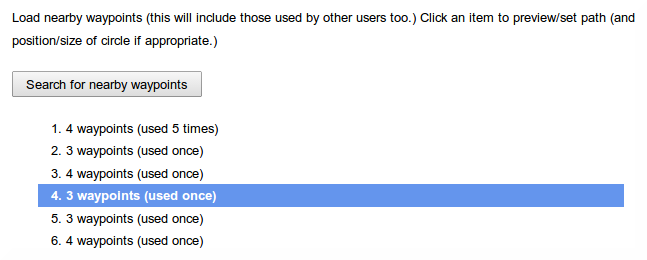
Then, create a new checkpoint by clicking on a point on the map or a stop on the log file. 

1

Checkpoints work just like places. The activity inside the circle will be ignored, and the circle has to be big enough for all the logs to pass through it, otherwise they won't be recognised.

2

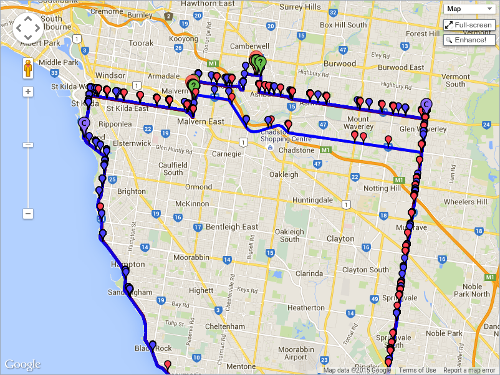
After saving checkpoints at the beginning and end of the climbs, the route map now looks like this:

3

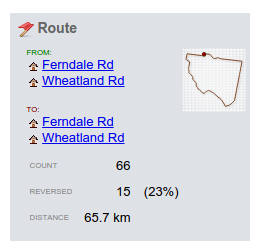
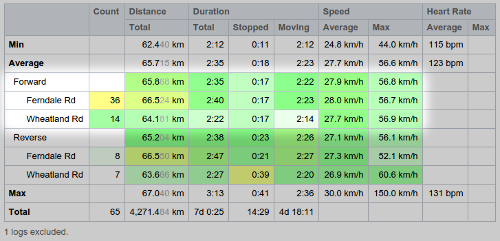
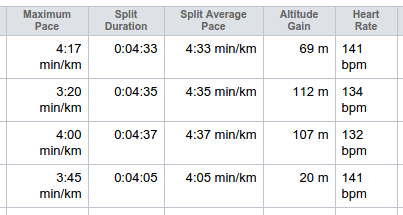
On the route detail Splits tab, a summary of the splits is displayed. 

4
You may need to click the "Regenerate Splits" button, which will reprocess all the activity with the new checkpoints. This may take some time, so there's an equivalent button on the activity detail page's Splits tab that will reprocess only a single activity.

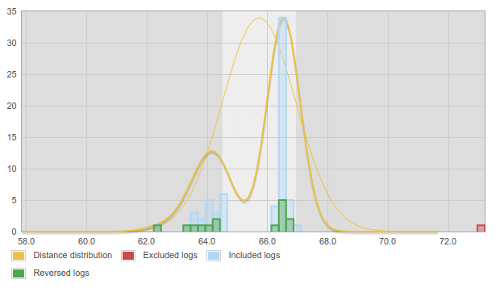
Clicking on the From or To checkpoint will bring up the split detail page. This page combines activity in both directions along the segment and lets you see maps, altitude profiles, trend graphs and other stats.

(download)

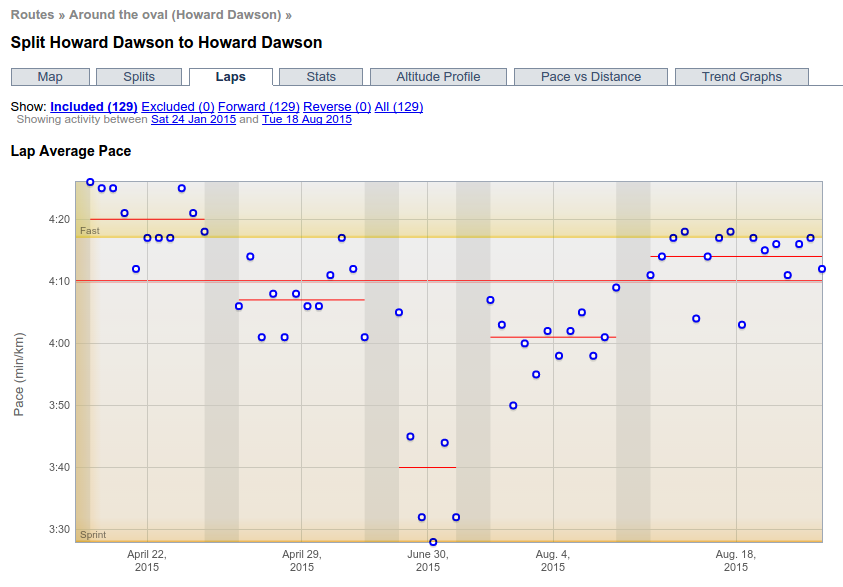
Checkpoints can be used to analyse short segments too, such as laps around an oval, or runs up and down a mountain (skiing or mountain biking, for example.)

8

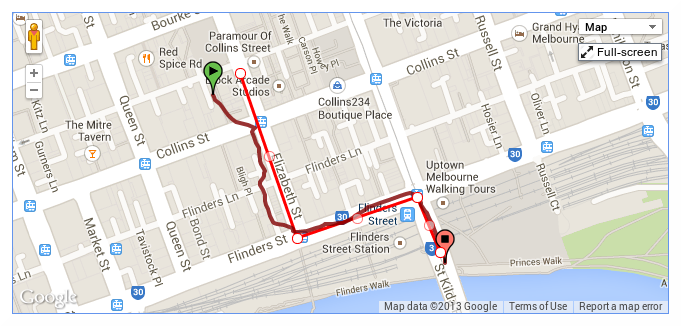
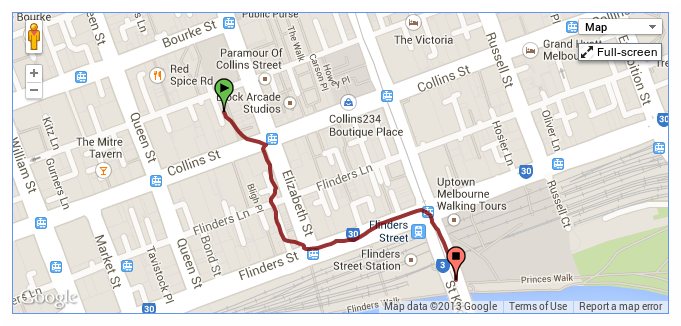
Another use is chopping off the ragged ends of a run, like in the following example where, when entering the city, the GPS signal becomes unreliable. By adding a checkpoint at the end of the path I can avoid the messy log file and also the disruption to my times caused by traffic lights and pedestrians.

9

This is a tricky area of the site to describe, but it's really useful, so have a play with it and if you have any questions, please let me know.

Filed under  //  checkpoints   documentation   routes   segments   splits  
Dec 28 / 5:18pm

Updates for December 29th

A few little enhancements to GPSLog Labs that have been made lately:

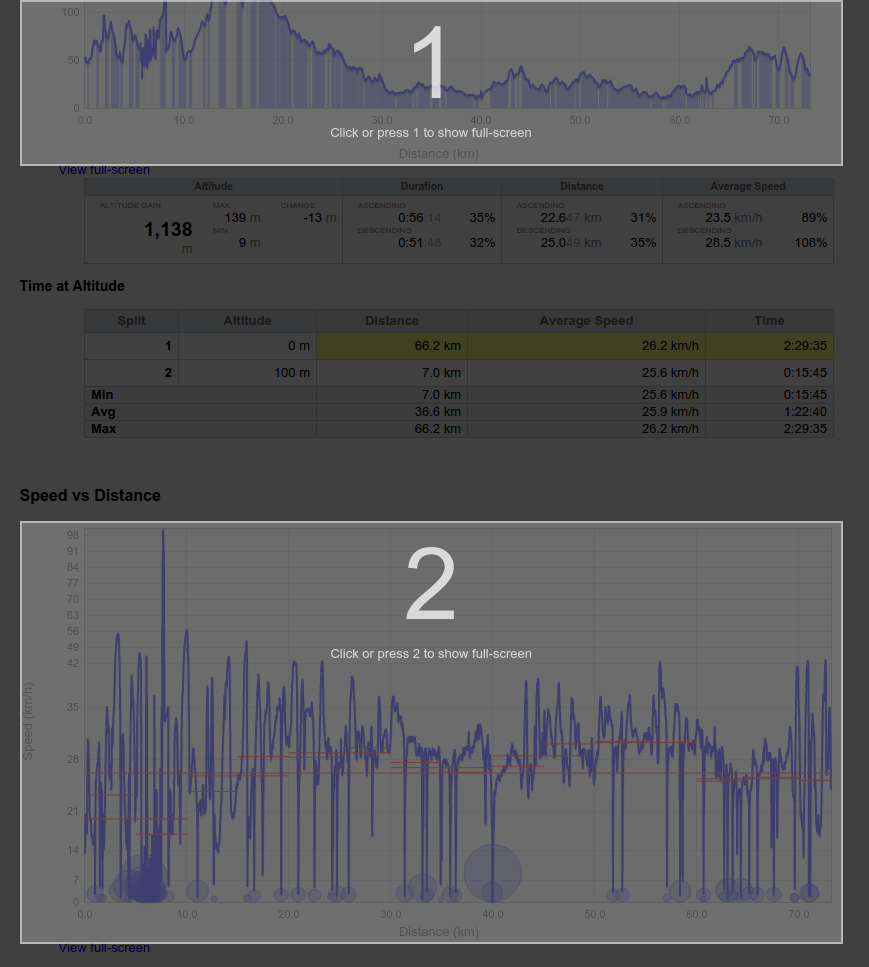
  • Many graphs now have a "View full-screen" link like the maps. This will let you really zoom into the details!

  • A few pages on the site now take advantage of wider screens if you have one.

  • Standard splits displayed on the log detail Comparisons tab now show extrapolated times if they're a little short (within 10% of the split distance). This is handy if you've got a route that's pretty close to a standard distance and you'd like to see how it compares to other routes.
    The rank of the activity is displayed in the comparison table too, and the standard split times are now also displayed on the distance finish time predictions graph.

  • Uploaded log files can now be deleted in bulk from the device log files page. This is handy if you're logging via an iPhone app and extra files are included in the zip files you email.

  • The trend graphs (for Tags, Goals, Routes) have a line of best fit added, as well as displaying the overall average.

  • The Distance vs Time graphs on the Tag and Goal detail pages have a new Group by tags option in addition to the group by route and age options.

  • The map showing all GPSLog Labs users' places now clusters icons together and shows how many places have been added in each region.

  • The remaining battery life for your device warning on the home page now gives a range in it's estimation of how much time is left.

Filed under  //  changelog   graphs  
Sep 21 / 6:48pm

[Completed] Scheduled Maintenance 24-Sept-2011 0:00 UTC

The GPSLog Labs server will be down for maintenance on Saturday 24th September, from approximately 0:00 UTC to 8:00 UTC.

The site will be unavailable while this occurs, sorry for any inconvenience that may cause.

[Update: The server upgrade has been completed successfully.]
Sep 2 / 4:28am

Updates for September 2nd

Updates to GPSLog Labs have been trickling in slowly over the last few months, so it's about time I mentioned a few of them on the blog:
  • Maps now have a "View full-screen" link at the bottom left:

    Screenshot-full-screen-1

    This will expand the map so it fills the browser window:

    Screenshot-full-screen-2

  • Buddy icons (displayed on your shared log detail pages) will now use the Gravatar for the email address you've set in your Account Settings. You can still upload an icon if you'd prefer not to use Gravatars.

    000000000000000000000000000000


  • Fancy, searchable dropdown lists (courtesy of the Chosen library):


    Screenshot-chosen-multiple

    Screenshot-chosen-single


  • "Remove automatic edits" command: Auto-chopping logs is one of GPSLog Labs' most powerful features, but sometimes you just want the entire log file. This command lets you remove all the cuts & places quickly and easily, so now you can have the best of both worlds.

    Screenshot-remove-automatic-ed

  • Deleting tasks from a goal can now be done in bulk. This makes it much easier to customise a training program or edit tasks you've cloned from another goal.

    Screenshot-task-delete

  • The Distance Finish Time Predictions graph now shows the values at the mouse position.

  • The Cumulative Stop Time vs Distance graph shows the total stopped time when zooming to a selection.

  • Added sorting to the Goal task possible route selection table and fixed a few bugs with highlighting routes with appropriate distances.


Filed under  //  changelog   maps  
Mar 10 / 9:51pm

Updates for March 11th

A few little changes to note while I'm busy working on something big and pretty cool:

  • The minimum split time between checkpoints on a route has been changed from 5 minutes to 1 minute, so you can now record splits as short as laps around an oval, assuming you're not too fast that is.

  • Distances and times are now displayed with full precision in the splits detail table.

  • The mobile page now has a "Recent Uploads" list, so you can check them quickly when uploading from a phone.

  • Route "average" distances are now only shown if the logs are similar in length, otherwise the range of distances is displayed.

  • I've added columns showing the last logged date and scheduled count for routes when selecting them for goal tasks.

  • The next scheduled task for a goal is displayed in the goals table and on the summary page for quick reference.

  • The goal tasks graph now has a link to zoom it in to a view of this week.
Filed under  //  changelog   goals   splits   tasks  
Feb 20 / 6:16pm

Updates for February 21st

I've just added a really useful feature to GPSLog Labs: The "Comparisons" tab for an activity page now actually shows some useful comparisons in a "dashboard" format.

Screenshot-log-compare-route

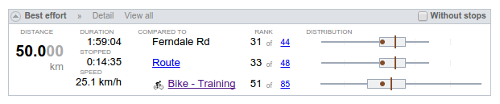
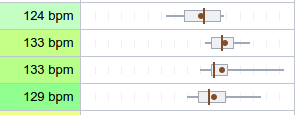
For each of the "standard split" distances (5 km, 5 miles, 10 km, etc.) the speed/pace and time for this log are displayed and compared to that for the other activity on the same route and/or sharing the same tags using a box plot.

The above screenshot shows the speeds for that particular run using solid dots on the box plot, and indicates it was the fastest for that route when stops are removed, but that there was a long stop somewhere between the 8 and 10 km splits that made it the slowest over those distances (the smallest value is on the left of the graphs, so rightmost is best for speed and leftmost is best for pace.)

Comparing it to all the activity tagged with Run, not just along that particular route shows it was in the top 25% (after taking out the stop):

Screenshot-log-compare-tag

The route comparison shows two extra splits that are not available when comparing to the tag, the total distance (10.6 km in this case) and the half-way point (5.3 km). These assume that all activity on the route is about the same length, so aren't meaningful for a tag and may also not be very useful if you have a route which varies a lot in length.

Some other recent updates to the site:

  • Pages with many tabs will have some of the tabs hidden to save space. Click the "more >>" button to show the rest.

    Screenshot-tab-slider-1

    Screenshot-tab-slider-2

  • The unknown routes page now lets you filter by tag.

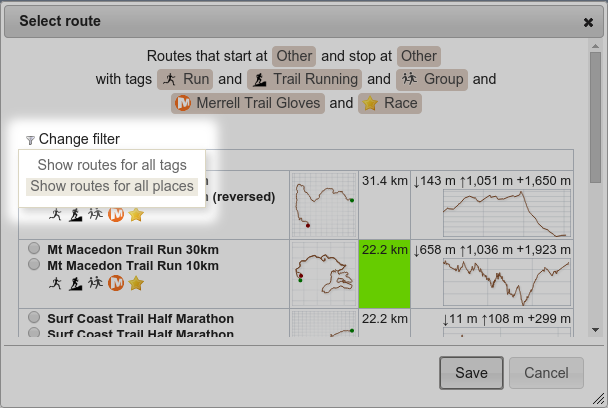
  • When setting up a task for a goal, you can now filter the possible routes by place.  This means that you can quickly find a route of the desired distance to complete the task and aren't overwhelmed by routes from places you don't need.

  • There are a couple of QR Codes on the site now to help get the urls into your mobile device.  Scan the following QR code to go to the mobile version of GPSLog Labs, for example.

    Qrcode

    There is also a QR code for the unique upload email address for your device on it's detail page.

  • When adding tasks from a training program to a goal, or creating a new goal from a training program, you can now see a preview graph of the tasks involved:

    Screenshot-add-goal-tasks-prev
  • The tag detail page has a new Splits Graph tab that shows a graph of all the activity speeds/times at standard split distances, together with lines indicating the distribution (10th,50th,90th percentiles).

    Screenshot-tag-splits-graph
  • The standard split distances now extend from 50km to 300km (50mi to 200mi) to make them more useful to cyclists and longer distance activities.

As always, please send feedback and suggestions to feedback forum.

Filed under  //  changelog   comparisons   goals   graphs   qr codes   splits   tasks   training program  
Feb 9 / 12:45am

Entering activity details manually

GPSLog Labs now has support for manually entering data that has not been recorded via a GPS data logger. Some instances where this is appropriate are:
  • Your logger failed to record the data properly (flat battery, corrupted file, operator error...)
  • You were indoors on a treadmill or wind trainer or doing an activity such as swimming which can't be logged.
  • You have training data that pre-dates your GPS logger.
In these, and other circumstances, GPSLog Labs will now let you enter in the basic stats about your activity (date, time, duration, distance, ...) and will then display the activity throughout the rest of the site together with other activity recorded using your GPS logger. This activity will be counted towards your Goals and Reports too, but obviously it won't be shown on maps or as Speed vs Distance graphs and the like, but where it's possible it will be included. The idea is to let you enter the kind of stats you get from a bicycle computer, stop watch or exercise equipment, but not to synthesize a GPS log.

You'll find a new Manual entries section under the Uploads tab:

Screenshot-manual-entries-empt

The Add manual entry form allows you to enter in all the basic stats for your activity:

Screenshot-add-manual-entry

Once you select the start and stop places, you can choose a Route between those places or add a new one if you want:


Screenshot-add-manual-entry-ro


Click on the time of the manual entry if you need to make changes after you've added it (or to delete it):

Screenshot-manual-entries

The detail page is simpler than for activity recorded with a GPS logger as there is no map or graphs to display:

Screenshot-manual-entry-detail

The manually entered activity will show up in the rest of the site where it makes sense:

Screenshot-manual-entries-acti

To avoid stats that you don't know from ruining your totals and averages, leave them blank, don't enter 0 (zero).

Screenshot-manual-entries-tag-

Please let me know of any suggestions for improvment at the Feedback page.

Filed under  //  manual entry  
Feb 7 / 6:57pm

Updates for February 8th

Some of these have been live on the GPSLog Labs for a while now, I just haven't had a chance to blog about them.

  • A preview map and details are now available on the week calendar activity page, to make it work the same way as the home page.

  • The activity table now shows weekly totals by tag and place.

    Screenshot-week-totals

  • Activity paths are grayed out rather than removed from the preview map, meaning you can compare multiple paths on the map simultaneously.

    Screenshot-preview-map-paths

  • The calendar summary tables now have an option to toggle between displaying distance or duration totals for each tag.


    0screenshot-calendar-summary-ta


    Screenshot-calendar-summary-ta

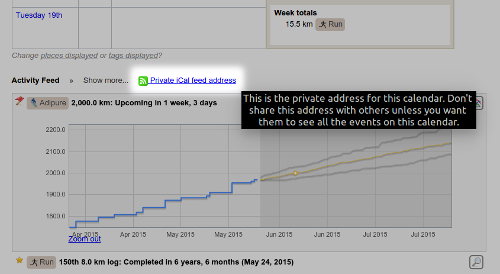
  • The device detail page now has a button that will send you an email containing the upload email address making it easy to add it to your address book.

    Screenshot-device-email-button

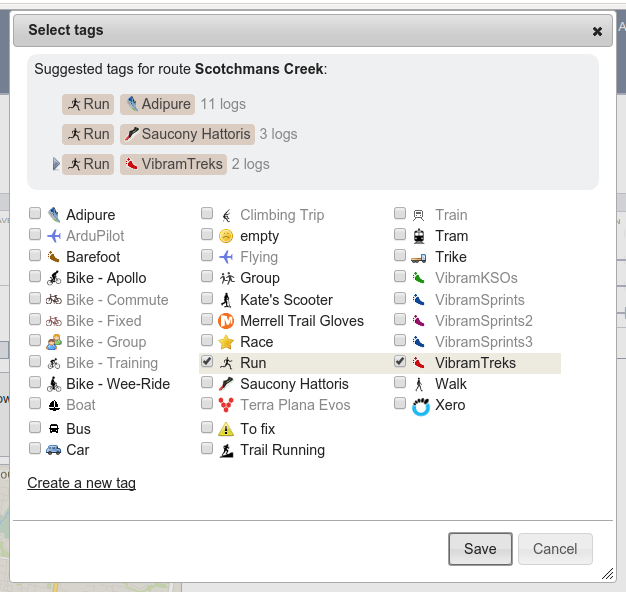
  • The tag popup form has a new option to apply the selected tags to all the non-junk segments of file. This only applies if the log file has been split into two or more segments.

    Screenshot-select-tag-form-app

  • The goal detail summary tab now has indicators of the daily activity for the week and month.

    Screenshot-goal-aged-monthly-t

    There's one bar per day, green are the latest on the right, orange the oldest on the left. Hover over them for some details.

  • You can now search for activity by keywords entered into the notes.  This is a little obscure still, type your query into the search box on the top right of any page and a button will appear to "Search activity notes for 'keyword'". Click it an you'll see a list of all matching activity.


    Screenshot-quickfind-search-no

    Screenshot-search-log-notes

  • The "Activity log as CSV" download now contains heart rate data if it was uploaded in a separate file, making it possible to do your own spreadsheet for analysis if you want.

  • The splits detail table now has a tags column and activity that has been excluded from the stats are indicated in the table, map, graphs.

  • The split detail pages now also have filtering of splits by forward/reverse direction and by included/excluded status.

  • The maximum supported upload size has been increased to 20mb.

Thanks for all the great feedback and suggestions on the GPSLog Labs Feedback page, please keep it coming.


Filed under  //  changelog  
Dec 27 / 5:11pm

Getting started (a quick tutorial) [Updated]

The old tutorial is getting a bit out of date with all the new features and changes to the look of the site, so here's an up to date version:

Signing up and using GPSLog Labs is really easy.

First, go to GPSLogLabs.com and sign in using any OpenID account:


Screenshot-1


Depending on your OpenID provider,  you may be asked to put in your name and email address to finish creating your account.  Or you may just need to choose whether you want your logs shown in kilometers or miles.


Screenshot-2


Next, click the Upload Log button and choose your log file.  Put in a name to identify your GPS logging device too.


Screenshot-3


The file will take a little while to upload, then a page will appear that will automatically detect the log file format.


Screenshot-4


If there are multiple formats, you can click "Show detailed results..." to see an indication of the data extracted from the file to see which is most useful:


Screenshot-4a


Once you select the format which imports the data best, the file will appear in the Uploads tab.


Screenshot-5


After a few seconds, the file should be processed, click the log file name to begin editing the extracted activity.


Screenshot-5a


The log file detail page has two tabs, "Log File Summary" shows the unedited contents of the log file, and "Edit Processed Activity" shows the extracted activity which you can edit if necessary.

Screenshot-6


GPSLog Labs automatically breaks activity into segments, such as time at the start place of the log (locking the door, waiting for the logger to lock on, stretching etc.), the time between places (the interesting bit, and the time at the end place. Click on the first unnamed place to give it a name.


Screenshot-7


The street address and timezone will be looked up automatically.  You should change the place name to something meaningful and shorter.

You can move the place marker if you need to, and change the "capture radius" for the place, but the default is usually fine.  Moving the place will cause the file to be reprocessed and you'll have to click through from the Uploaded Log Files page again once it's done.

After naming the place, the activity will be updated accordingly.  You may need to name other places that appear in your log as well.


Screenshot-7a


The next step is to name the route.  Routes are used to classify and group activity that follow the same general path.


Screenshot-8


Save and the edited activity will now display your new route:


Screenshot-8a


You can also tag the activity according to it's type/purpose.


Screenshot-9


By default, activity tagged with the Run tag will be displayed in "pace" format:


Screenshot-9a


Back on the Uploaded Log Files page, the log file will now show up as blue (instead of yellow) to indicate it has been edited.


Screenshot-10


Your activity is also visible in the rest of the system classified by places, routes and tags. For example, the home page will show you a summary of your activity for the past week:


Screenshot-11


And from any of these places, you can follow the links through to an "activity detail" page that will let you see detailed maps, graphs and statistics:


Screenshot-12


This is only a very small sample of what GPSLog Labs can do, you can also filter noisy GPS signals from your data, plan and track your training towards goals, and share your activity with your friends.

So, give it a try yourself and let me know what you think.

Tom

Filed under  //  tips   tutorial   uploading  
Dec 21 / 8:27pm

Updates for December 22nd

  • The "This week's activity" table on the home page of GPSLog Labs now allows you to scroll back and forward through your uploaded activity using "« Previous | This week | Next »" links. The old "Earlier activity" link has been removed as it's no longer needed.

  • The Trends report has been optimized and now runs much faster.

  • When editing an automatically created place, a list of suggested "Nearby places" is displayed to make it easier to correct logs where your logger didn't lock on at a place:

    Screenshot-change-auto-created

  • When editing an unmatched place, nearby places are now shown as markers on the map too. Clicking them will select the place from the drop-down list.

  • The activity detail page heading has been reformatted to make it easier to read:

    Screenshot-activity-detail-hea

  • The libraries of icons you can select from for your tags and places have been expanded and refined. They should be better looking and more useful now. Edit your tags or places to change them to one of the new icons:

    Tag icons:

    All_tags

    Place icons:
      

    All_places

    You can still upload your own icons if you want to, for best results they should be 16x16 pixels, in GIF or PNG format with transparent backgrounds.

  • You can now add goals based on the built in training programs. Click the Add Goal from Training Program link on the Goals page, select the program, put in your goal finish date (race/event day), select the tag you'll use to track your training logs and you're ready to go.
     
  • Two new training programs have been added too:

  • Adding tasks to goals has been made faster and easier too, and a bug was fixed that was preventing adding fractions of kilometers as the target distances (i.e. you could only enter whole numbers, not 6.5km for example.)
As always, feedback and suggestions are welcome and I hope everyone has a happy and safe Christmas and New Year.

-- Tom

Filed under  //  changelog   goals   icons   places   programs   suggested places   tags   tasks