GPSLog Labs Blog

GPSLog Labs Blog

May 28 / 6:49pm

Updates for May 29th

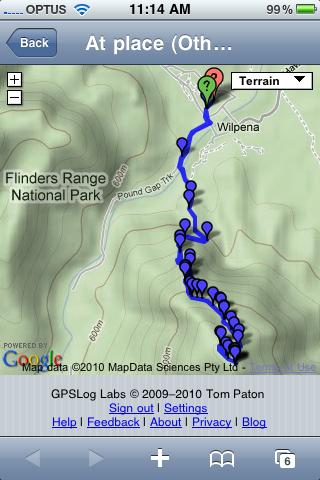
  • The shared log detail page now has a mobile (iPhone) optimized version:

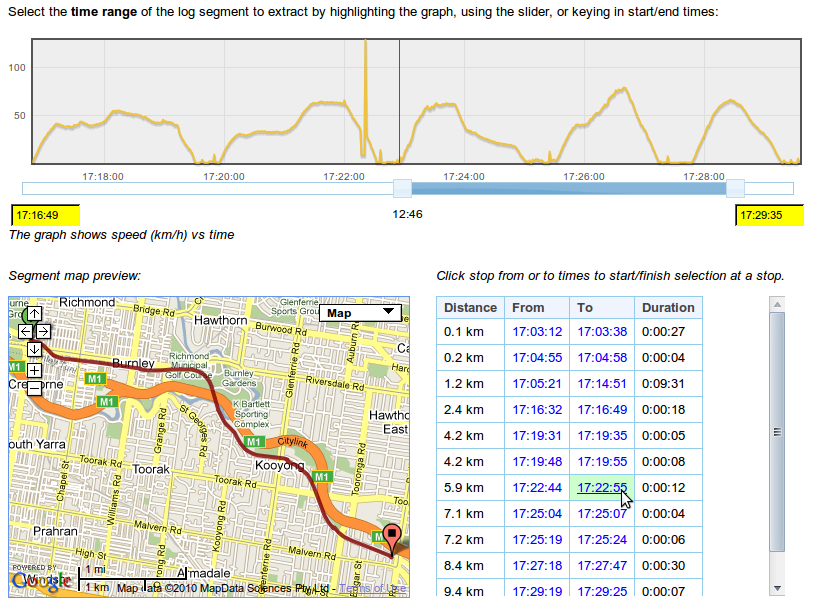
  • A list of stops is displayed when manually creating log segments.  You can click on the stop times to start stop the segment at that point.  The interface is a little rough, any suggestions on how to make it easier to use are welcome.

  • Merging log segments is a little smarter, and it is now easy to remove a little "junk" other segment from the start or end of a log.

  • You can now add an icon to distinguish your devices:

-- Tom

Comments (0)

Mar 8 / 12:21am

Updates for March 8th

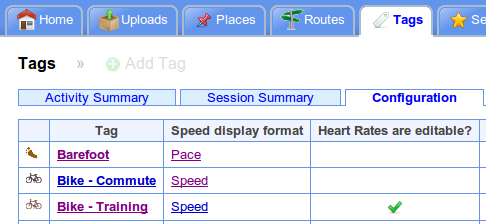
  • Selection of whether speeds are displayed as speed (km/h or mph) or as pace (minutes per km or mile) is now done on the tag page:

    There was a good reason for it being on the Settings page previously, but I've forgotten what it was...

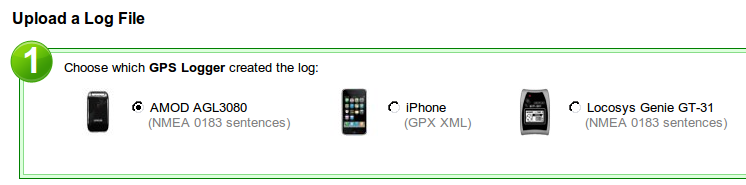
  • There's a list of some of the most common GPS logging devices to choose from when you add a new device.  Many more that aren't on the list work with GPSLog Labs, so you can still enter your own device name if you need to.

  • The algorithm used to determine the amount of ascending and descending distance/duration for your activity has been fine tuned.  It is more accurate now, using a line of best fit through 7 samples and considers anything greater than a 2.5% grade to be a hill.  The grade histograms have also been extended to show up to a 40% grade, have fun climbing that!


-- Tom

Filed under // changelog devices tags

Comments (0)

Mar 7 / 2:30am

Heart rate logging

Support for heart rate logging in GPSLog Labs has been added for Garmin devices that use the Garmin Training Center format (i.e. .TCX files).

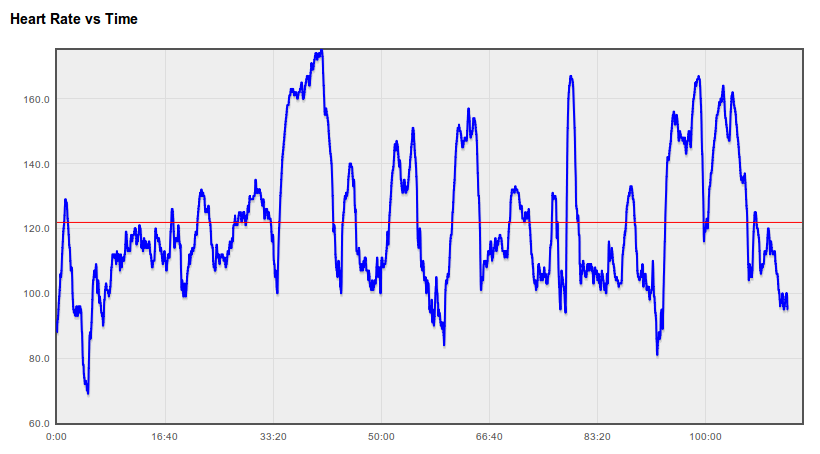
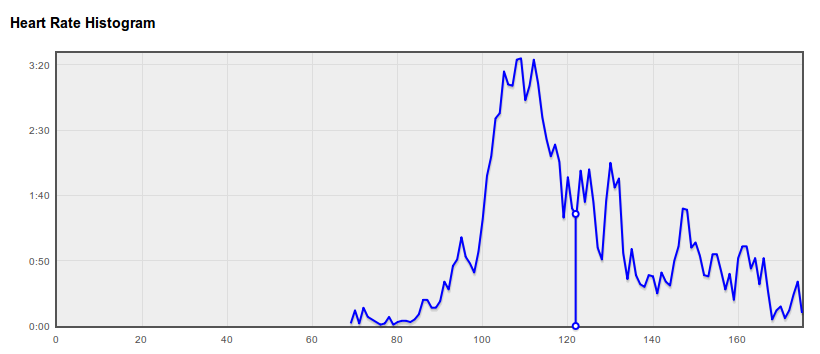
You can see graphs of your Heart Rate vs Time and a histogram of your heart rate on the activity detail page:


Heart rates will be repeated to fill in gaps if the readings occur less than once per second, up to a maximum of 5 minutes.

If you have a device that logs heart rates, and the graphs aren't showing up in GPSLog Labs, please let me know and I'll add support for it.

Note that this will only work for logs out doors where a latitude and longitude is recorded with the heart rate, so if you're using something like a Garmin EDGE705 in indoor mode, you won't be able to view your activity or heart rates.

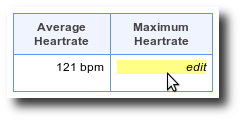
If you don't have a GPS logger that records your heart rate at each point, you can still record average and maximum heart rates against your activity manually (i.e. based on a non-logging heart rate monitor strap.)

To switch heart rates on manually:

  1. Go to tags, and select a tag you want to record heart rates for (e.g. Running or Bike)
  2. Edit the tag, click the "Edit heart rates" checkbox.
  3. Now, when you go to activity tagged with that tag, you'll see the "heart rate" tab (this usually only shows up if your logger supports heart rates.)
  4. On that tab, the average and maximum heart rate values will show "edit", click that, type in the heart rate and click the save button.

Once the system has heart rates recorded against your activity (either automatically or entered manually) they will show up in summary and comparison tables and graphs for routes and tags.

-- Tom

Comments (0)

Feb 8 / 1:39am

Updates for February 8th

This post outlines a few of the recent updates to GPSLog Labs:
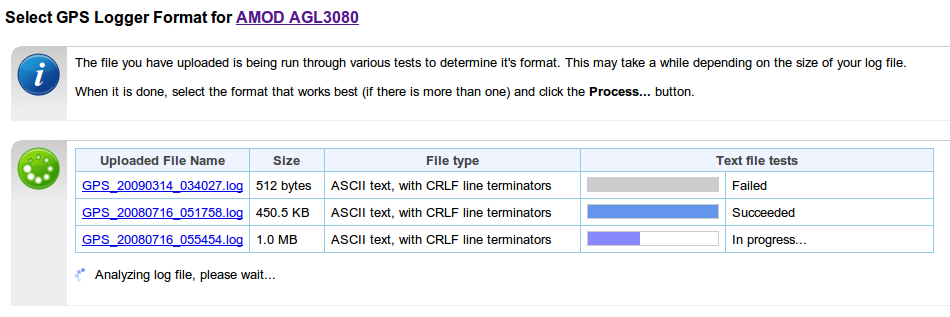
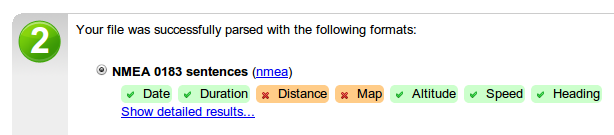
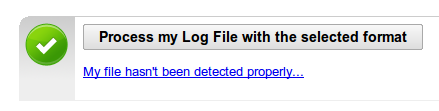
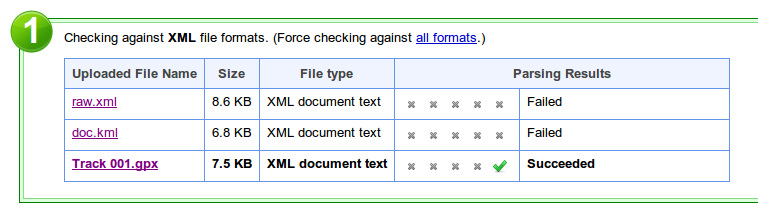
  • The automatic device format detection process has been cleaned up and improved so it works with multiple files:

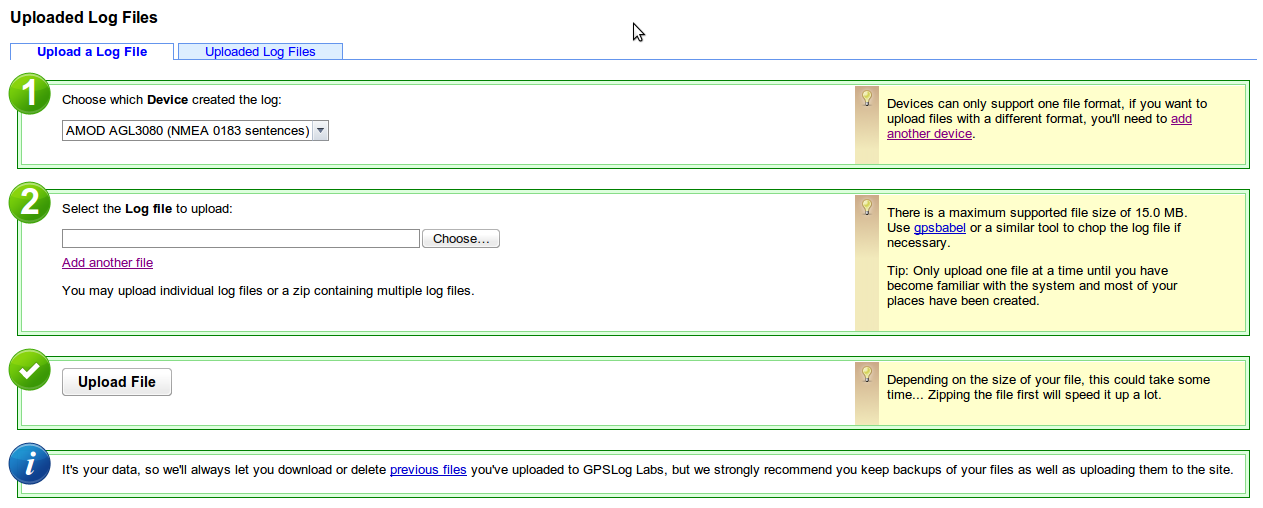
  • The uploads page has a new layout:

  • And it's now easy to navigate through multiple files when editing uploads using the Next and Previous links:
-- Tom
Filed under // changelog devices uploading

Comments (0)

Dec 14 / 6:25pm

Upload form redesign and a bit about Devices

I've changed the GPSLog Labs upload form a little, partly to make it nicer looking and less cluttered, but mostly to make the purpose of Devices a little clearer.
?ui=2&view=att&th=1258fff9572c40fb&attid=0.1&disp=attd&realattid=ii_1258fff9572c40fb&zw

Previously, the choice of device to upload to wasn't shown on the form if you had only one device, and now it will always be given.

To process the log files you upload, the system needs to know what the format of the file is.  When you first upload a file, there is a page that automatically detects this format, but that isn't practical to do for every file that is uploaded, so the setting is stored in a "device".  This means that each device can handle one format only, and therefore, if you want to upload files with a different format you'll need to create another device to do so.

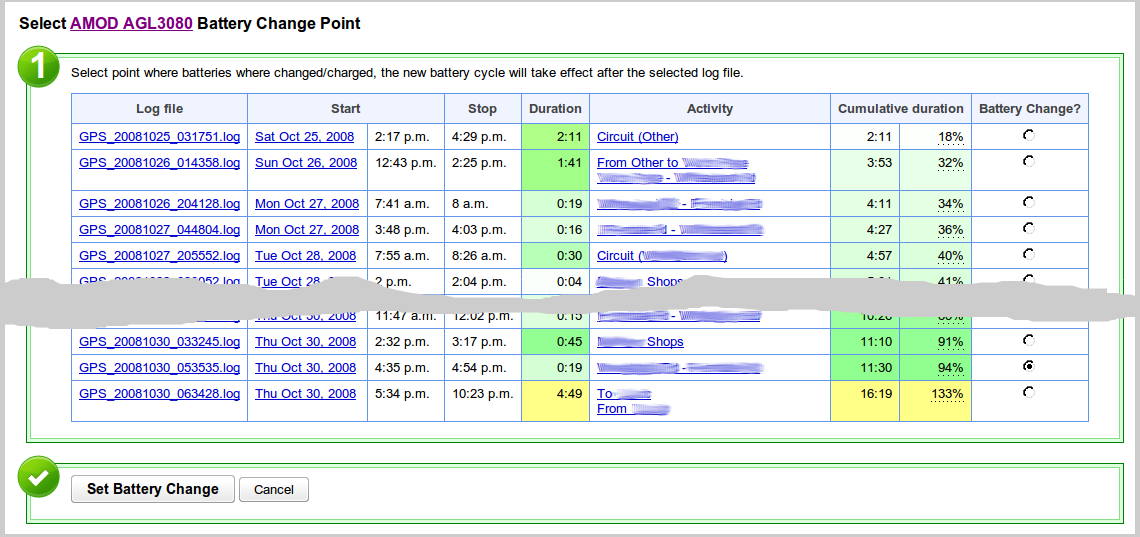
The other purpose of devices is to track battery life.  If you upload all logs you record, then GPSLog Labs knows how long your logger has been switched on so can predict how much time you have before you need to recharge/replace your batteries and therefore prevent you getting a flat battery in the middle of an activity, which can be rather frustrating!

When the logged usage goes over 75% you'll get a warning:

Marking the point where you recharged or replaced your batteries is easy too:


-- Tom

Comments (0)