GPSLog Labs Blog

GPSLog Labs Blog

Dec 21 / 8:27pm

Updates for December 22nd

  • The "This week's activity" table on the home page of GPSLog Labs now allows you to scroll back and forward through your uploaded activity using "« Previous | This week | Next »" links. The old "Earlier activity" link has been removed as it's no longer needed.

  • The Trends report has been optimized and now runs much faster.

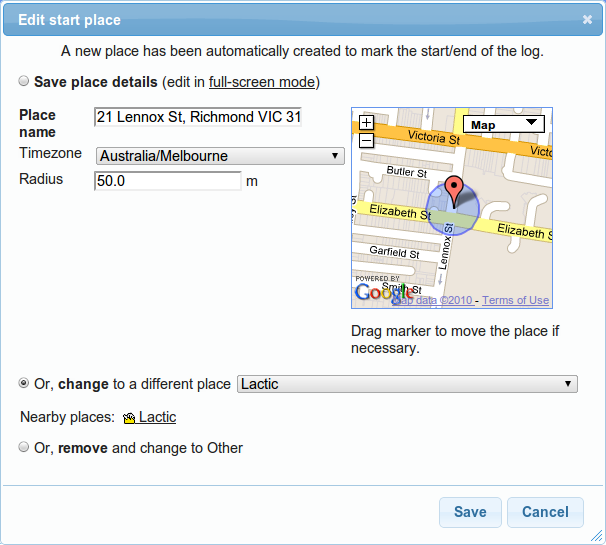
  • When editing an automatically created place, a list of suggested "Nearby places" is displayed to make it easier to correct logs where your logger didn't lock on at a place:

    Screenshot-change-auto-created

  • When editing an unmatched place, nearby places are now shown as markers on the map too. Clicking them will select the place from the drop-down list.

  • The activity detail page heading has been reformatted to make it easier to read:

    Screenshot-activity-detail-hea

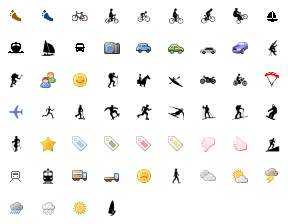
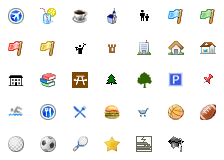
  • The libraries of icons you can select from for your tags and places have been expanded and refined. They should be better looking and more useful now. Edit your tags or places to change them to one of the new icons:

    Tag icons:

    All_tags

    Place icons:
      

    All_places

    You can still upload your own icons if you want to, for best results they should be 16x16 pixels, in GIF or PNG format with transparent backgrounds.

  • You can now add goals based on the built in training programs. Click the Add Goal from Training Program link on the Goals page, select the program, put in your goal finish date (race/event day), select the tag you'll use to track your training logs and you're ready to go.
     
  • Two new training programs have been added too:

  • Adding tasks to goals has been made faster and easier too, and a bug was fixed that was preventing adding fractions of kilometers as the target distances (i.e. you could only enter whole numbers, not 6.5km for example.)
As always, feedback and suggestions are welcome and I hope everyone has a happy and safe Christmas and New Year.

-- Tom

Filed under  //  changelog   goals   icons   places   programs   suggested places   tags   tasks  
Nov 18 / 8:40pm

Updates for November 19th

Updates on the updates to GPSLog Labs are lagging a bit, but here's some of what's been happening lately:

  • The log file chopping logic has been tweaked a little to hopefully avoid creating as many unwanted "unnamed places":
    - Auto created places must now be further away from known places before they'll be created.
    - Auto created places won't be used to chop logs between known places. If you do want the auto created place, after you name it, if you reprocess the log then it will be cut properly.
    - There were also a few bug fixes that should make detection of places more accurate.

  • There's better support for editing and filtering of large log files.

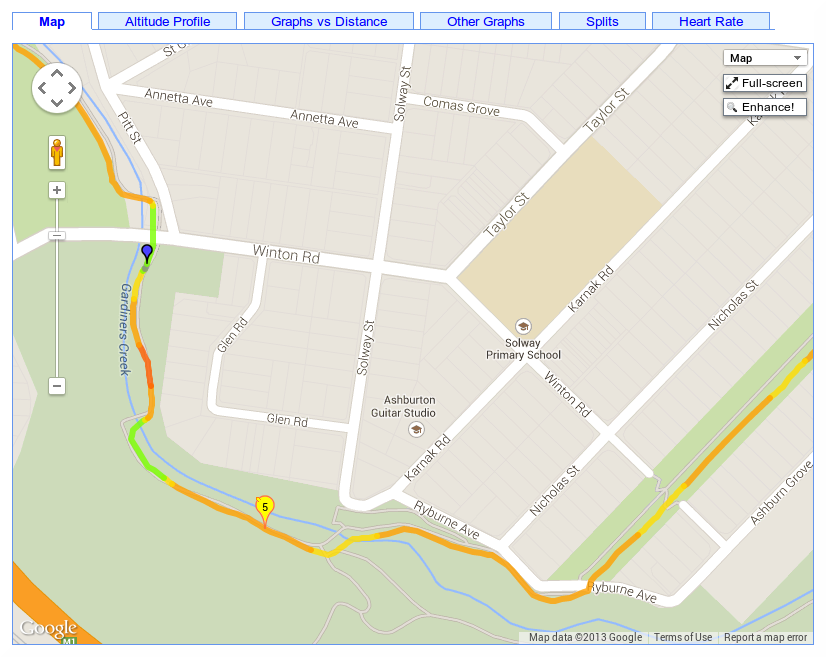
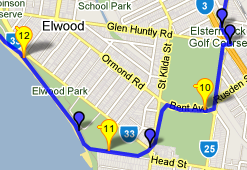
  • The little milestone markers now have a small arrow attached to indicate the approximate direction of travel at that point:

    Screenshot-milestone-markers2

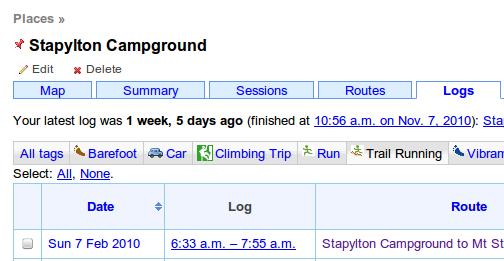
  • There's now a filter on the logs tab for a place that lets you narrow down the activity by tag:

    Screenshot-place-tag-filters

  • The log file editing page has been tweaked to make finding some of the commands easier, the menu now includes the "Add a Place" and "Manually create segments" commands that were previously a little hard for some users to find:

    Screenshot-rawlog-confirm-menu


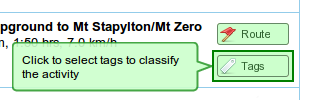
    It's now possible to change the Route or Tags directly from the edit page for an activity after they have been set:

    Screenshot-rawlog-confirm-ok-b


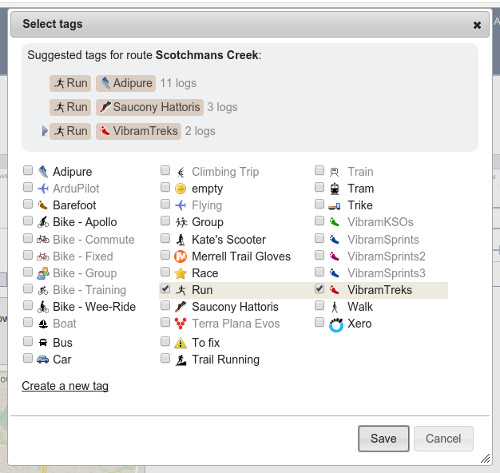
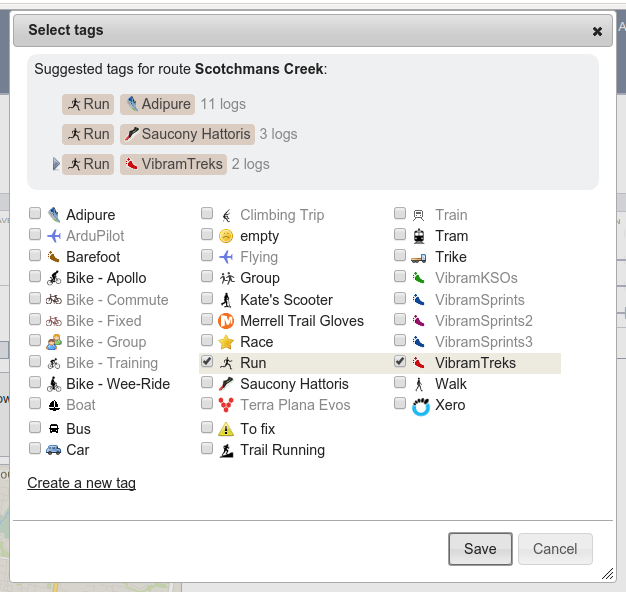
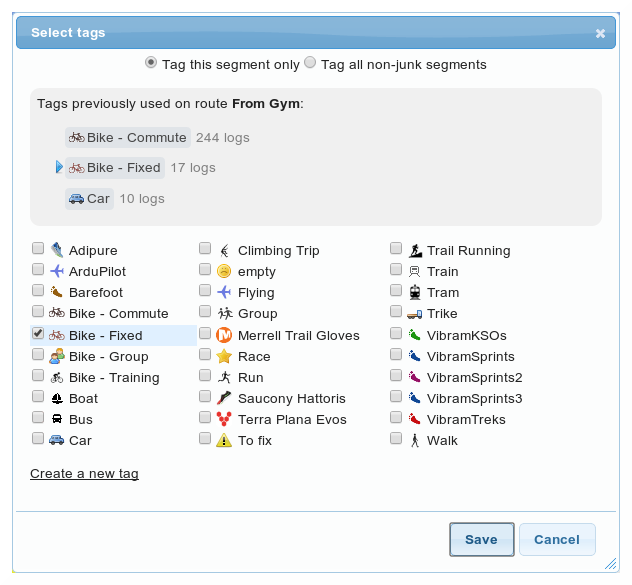
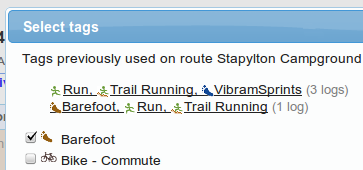
  • The "Select tags" popup now allows quick selection of sets of tags from those used previously on other activity on the same route:

    Screenshot-tag-edit-used-for-r


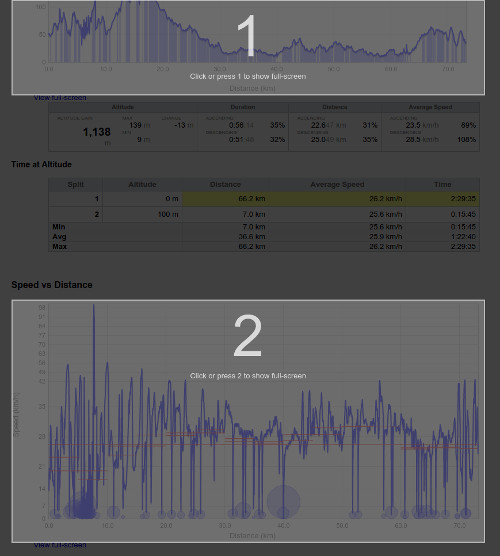
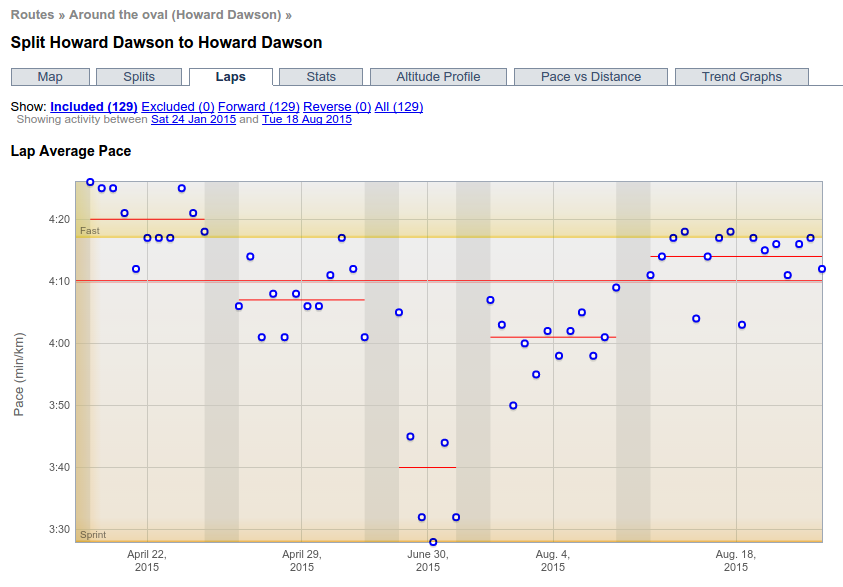
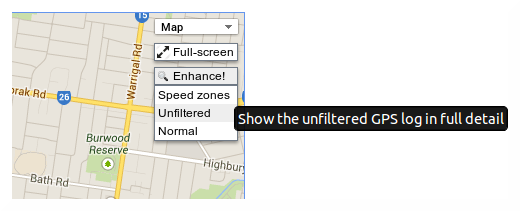
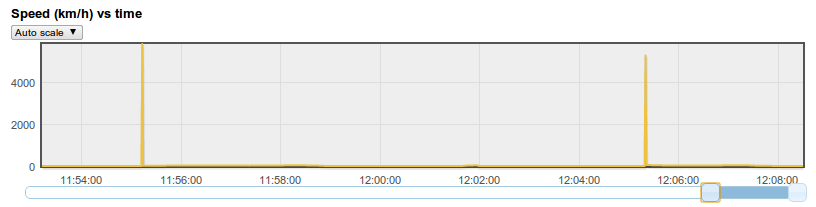
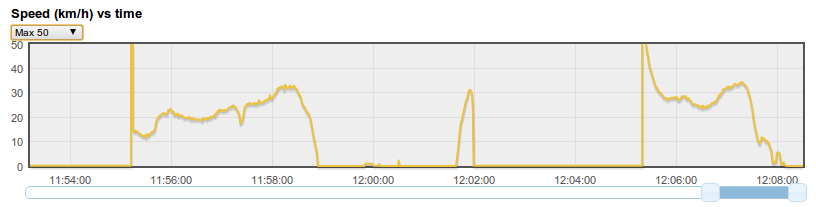
  • Speed vs time graphs when you're editing and filtering log files now have a "scale" selection, that will allow you to see detail in log files which was previously hidden by large speed spikes caused by GPS errors:

    Screenshot-graph-scale-before

    In this example, the actual activity is completely obscured by the 5,000 km/h errors... Selecting a maximum of 50 km/h on the scale means you can see the activity properly and edit it as required:

    Screenshot-graph-scale-after

  • There's a new "Inverse position filter" available, that is the opposite of the Position filter. i.e. it will discard points outside the given circle.
Filed under  //  changelog   filters   processing   tags  
Aug 16 / 8:04pm

Distance Finish Time Predictions

I've just added an experimental feature to GPSLog Labs to provide estimates of the finish times for different distances based on the activity you've logged.  For example, this can take your pace from a 10km run and tell you how long it would take to do a half marathon, or take a target pace for a long distance and tell you how fast you should be aiming to do shorter training runs.

This is based on formulas developed many years ago by Peter Riegel and Dave Cameron by fitting a curve to the world record times for various distances. How well these apply to non-elite athletes is something I'm curious about, but the theory is that if you put 100% into running 10km, you'll do it in a certain time. If you put 100% into running 5km, you'll be able to go a certain amount faster as you only have to last half as long and vice versa for 20km. The ratio of speeds at different distances should be roughly right even if you're not breaking world records.

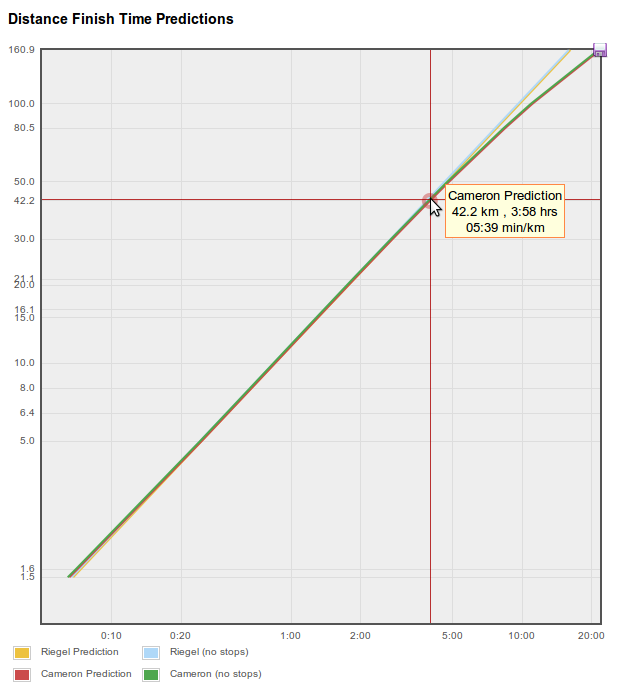
There are two places where this now appears in GPSLog Labs, the first is on an activity detail page's Comparisons tab and it extrapolates the pace (with and without stop time taken into account) to other distances:

Screenshot-log-detail-dist-fin

The estimates using the two formulas are quite close until you get to very large distances, but you will hopefully be able to judge which is more appropriate for your activity.

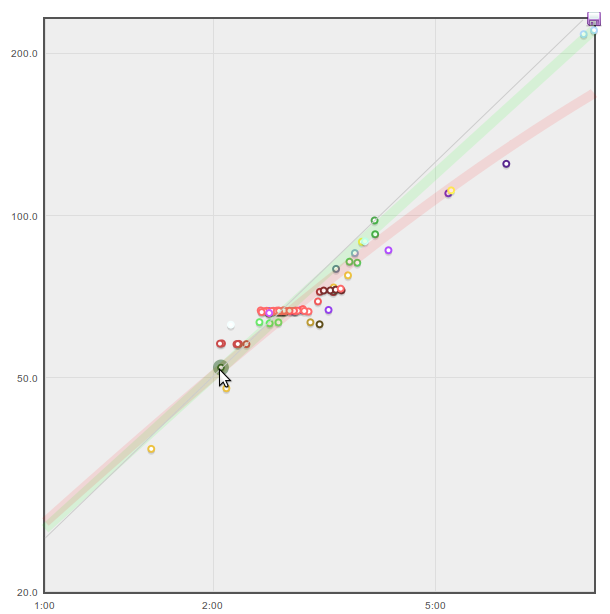
The second version is found on the Distance vs Time Graph tabs of the Tag detail and Goal detail pages.  Move the mouse to set the speed to be extrapolated and the prediction curves will be overlayed on your actual recorded activity to see how they compare.  The thin gray line is a linear prediction assuming your speed/pace won't vary as the distance increases or decreases. The red line uses Peter Riegel's model and the green line uses Dave Cameron's model. These estimates are often very similar and overlap simply appearing gray.

Screenshot-tag-dist-time-w-pre

As far as I know, these formulas were developed for running, but the curves may be useful for other activity as well.

I'm very interested in knowing how this works for people, there are many other sites on the internet that will perform the same extrapolations if you manually key in your distance and time, so it's not just me interested in playing with this stuff!

Filed under  //  goals   graphs   predictions   stats   tags  
Aug 16 / 6:04pm

Uploading by email

You can upload logs directly to GPSLog Labs from your iPhone or similar mobile device using your unique email upload address.

Click on your device icon on the home page to find your device's unique address.  It will look something like upload+abcdef123456zyxwvu987654@gpsloglabs.com.

Screenshot-upload-email-addres

Simply send the log file or files as attachments (zipped if you like, it'll be faster that way) and then you will receive an email containing links to the activity in GPSLog Labs once it is processed.

You can add tags to your activity by entering them in the subject line like: ((tags: Bike))  The tags will be matched as smartly as possible, you only need to put enough of the tag in to make it unambiguously match one of your existing tags and the text case doesn't matter.

The rest of your email title will be added as a note on the activity.

Filed under  //  email   iphone   mobile   tags   tips   uploading  
Apr 12 / 4:34am

Less tabs is more

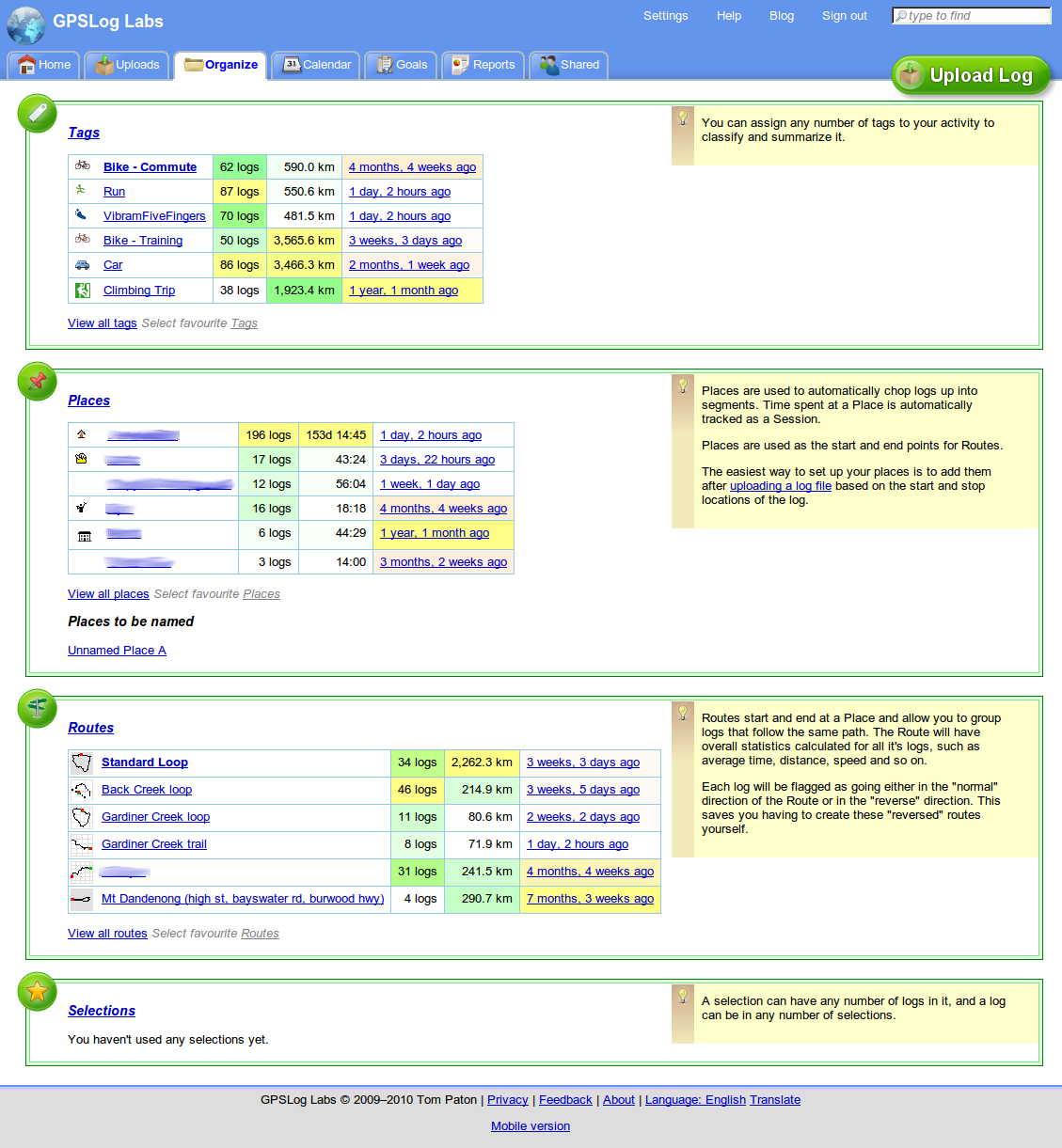
GPSLog Labs has a new "Organize" tab, this is a page that will show your most important and relevant tags, places, routes and selections for quick and easy access.

Screenshot-organize-tab-1

You can get to all of the information that was on the old Tags, Places, Routes and Selections tabs from the new tab so they've been removed.

The "importance" algorithm tries to weigh up the number of times the item has been used, the total distance and how recent the last activity was.  This won't work perfectly, so you can choose to "pin" your favourite items to the top of the list for quick access.

-- Tom

Filed under  //  changelog   organize   places   routes   selections   tags  
Mar 28 / 12:50am

Updates for March 28th

  • Florian is doing a great job translating the site into German, danke schön!
    Ampelmann_normal

  • The Summary tab on a tag detail page will show a table breaking down the activity for that tag by other tags where appropriate:
    Screenshot-tag-pivot

  • The Distance vs Time graph on a tag detail page now shows a line through the mouse position that let's you see at a glance which logs are faster, slower or the same speed:
    Screenshot-dist-vs-time-crossh

  • Table rows are now highlighted as you hover the mouse over them.

  • GPS Data Filter editing has been improved to make it more obvious that the items can be dragged to re-arrange the order that they are applied:
    Screenshot-filter-reorder

    -- Tom

Filed under  //  changelog   filters   tags   translation  
Mar 8 / 12:21am

Updates for March 8th

  • Selection of whether speeds are displayed as speed (km/h or mph) or as pace (minutes per km or mile) is now done on the tag page:

    Screenshot-tag-configuration

    There was a good reason for it being on the Settings page previously, but I've forgotten what it was...

  • There's a list of some of the most common GPS logging devices to choose from when you add a new device.  Many more that aren't on the list work with GPSLog Labs, so you can still enter your own device name if you need to.

    Screenshot-device-name-dropdow

  • The algorithm used to determine the amount of ascending and descending distance/duration for your activity has been fine tuned.  It is more accurate now, using a line of best fit through 7 samples and considers anything greater than a 2.5% grade to be a hill.  The grade histograms have also been extended to show up to a 40% grade, have fun climbing that!


-- Tom

Filed under  //  changelog   devices   tags  
Dec 7 / 7:30pm

Filtering GPS tracks automatically by tag

The new GPS track filters in GPSLog Labs are powerful, but if you had to configure them by hand for every log that you uploaded, they wouldn't be much use.

Thankfully, the real power of the filters is that they can be attached to tags, and then when that tag is assigned to a log the filters will be copied across automatically.

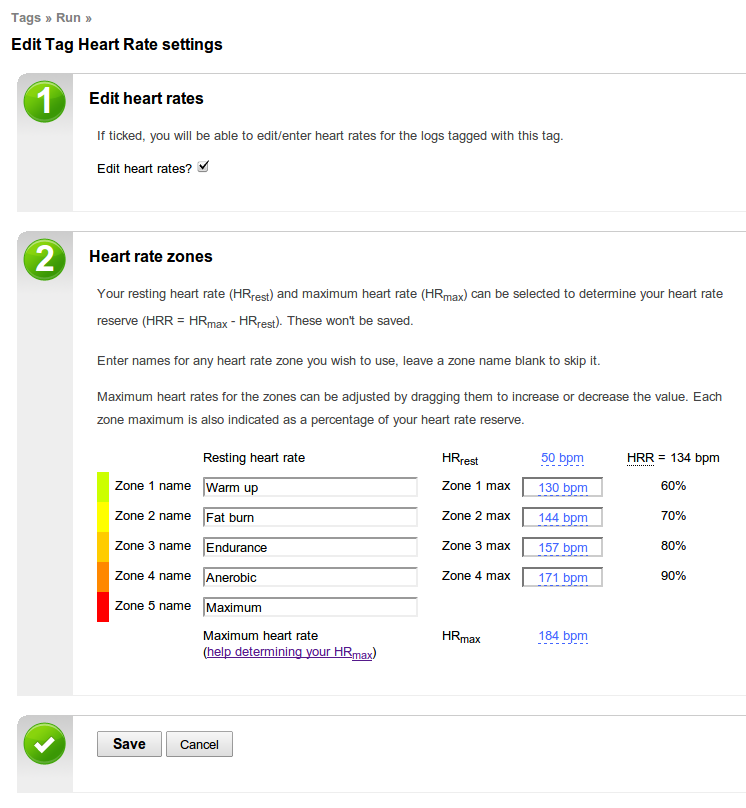
This means you can configure a set of filters for all your logs tagged with Run, and you can have a different set of filters for Bike Ride.  For example, you may want to tweak the sample window size on the Median filter as the average speed will vary less when running than when bike riding so the filter can be a bit more aggressive.

The process for adding filters to a tag is the same as for a log, the difference is that you can't see what is being matched by the filter, so I suggest you get the filter working on a log then copy the details across to the tag so it is automatically applied to other logs.

Note that the filters are only automatically copied across to the log when the tag is assigned to the log and you have not modified the log filters.  You can click the Reset button on the log filters page to restore it to the defaults for the tag.

As always, let me know if you have any difficulties or suggestions, and I hope you enjoy this new functionality.

-- Tom

Filed under  //  changelog   filters   tags  
Nov 14 / 1:25am

Tag and route inference

GPSLog Labs has always made some basic attempts to automatically assign a route for a log segment if it can:
  • If there is a single route between the start and end places of the log it will be assigned automatically.
  • If there are no routes between the start and end places, one will be automatically created and assigned.
And now I've just added an experimental feature that will try to guess the route after you assign a tag.  This is useful in those cases where you have 2 (or more) routes between places, say one by car and one by bike.  The above automatic assignment won't work in these cases, but if you tell it whether it was by bike or car by tagging the route, it will look again for routes using only the assigned tags.

This works in reverse too, if you assign a route that always has a particular tag associated with it, then the tag will be automatically filled in too.

So, it'll vary depending on your setup, but you should be able to select the route in many cases and have the tags automatically assigned and select the tag in other cases to have the route automatically assigned.

Let me know if you come across any issues with this change, and hopefully it makes things a little easier.

-- Tom

Filed under  //  changelog   routes   tags   tips