GPSLog Labs Blog

GPSLog Labs Blog

Sep 1 / 10:43pm

Updates for September 2nd

  • Support for the Nav N Go iGO 8 track format has been added. This looks like a pretty good app, but has a terrible name, not that I can talk...

  • Behind the scenes there's a new storage engine which will be able to handle a lot more growth in uploads.  Let me know if you notice anything odd.

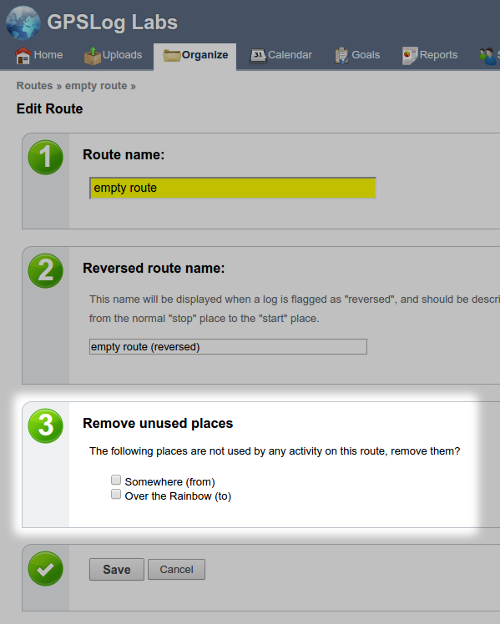
  • There's a new "smoother" design on the forms throughout the site:

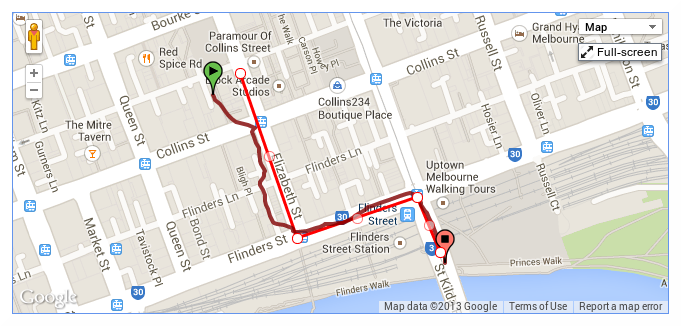
  • The goal detail page now has a map tab.

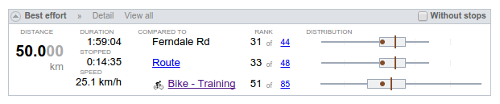
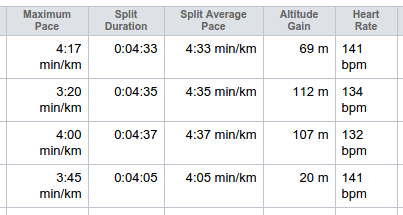
  • The activity "Comparisons" tab has a new statistic: The split for the first and second halves of the activity. The theory is that if you've paced yourself properly and haven't slowed as you got tired this should be 0 or even negative.

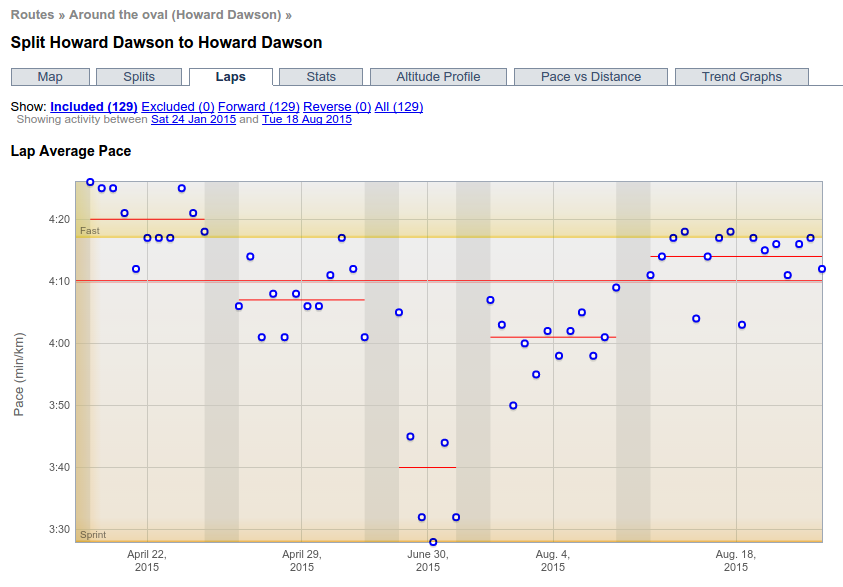
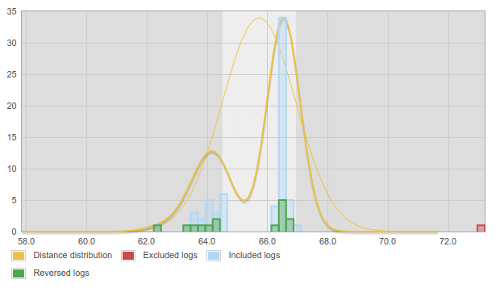
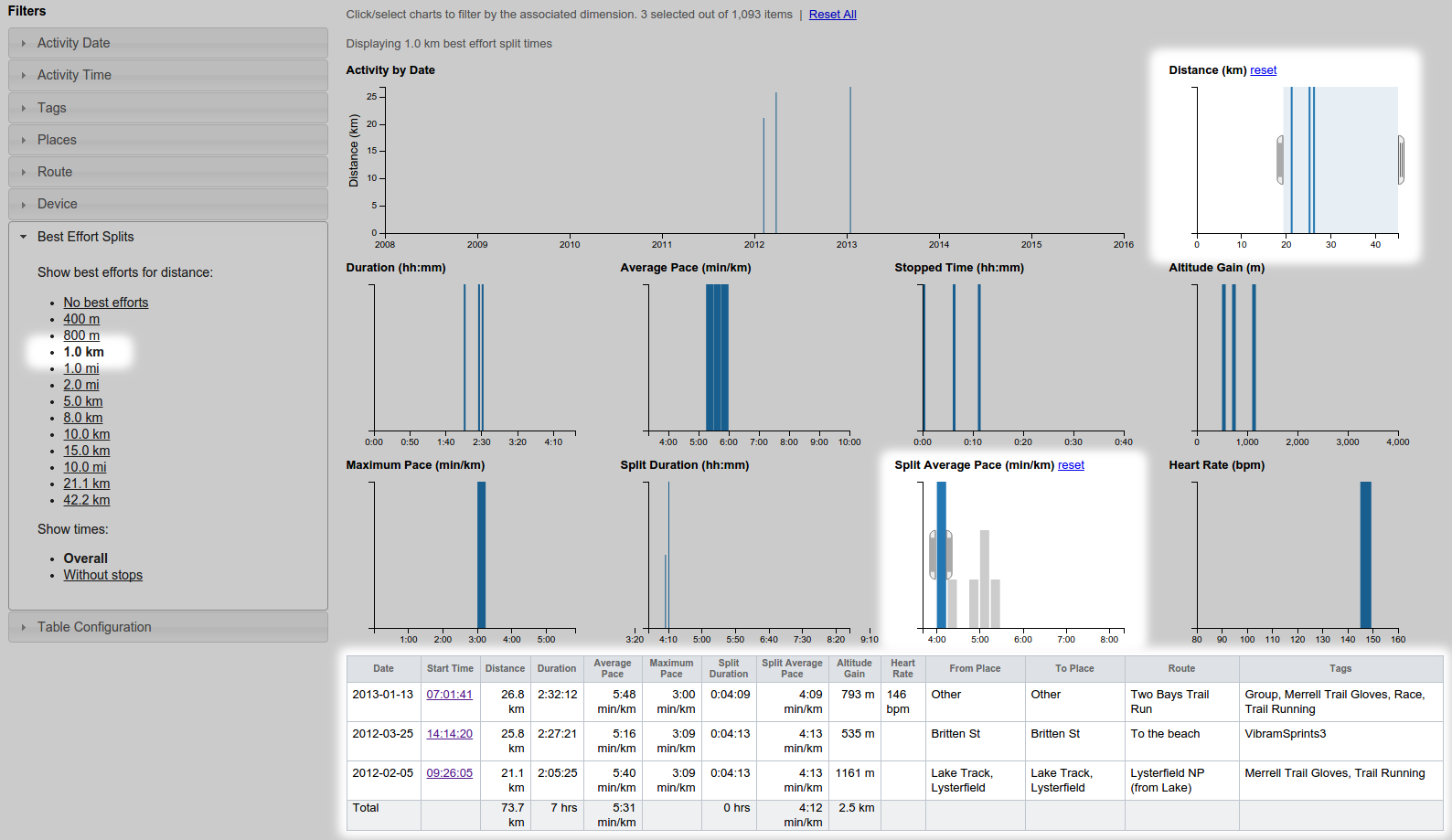
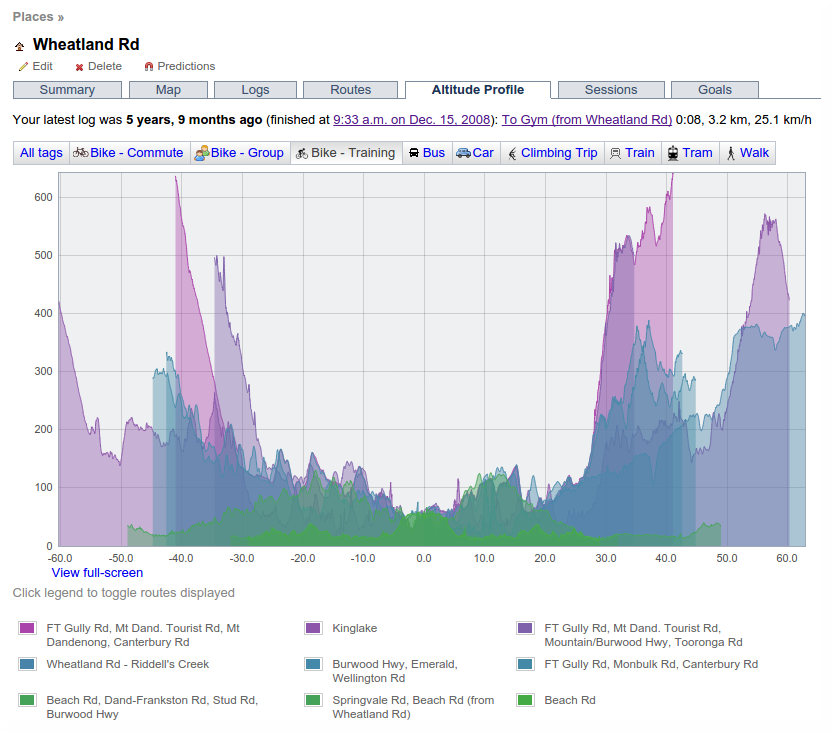
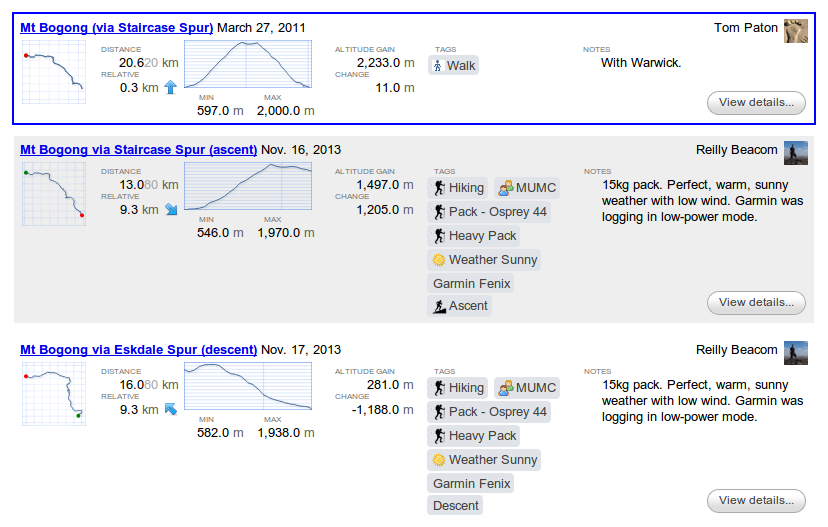
  • The Distance vs Time graphs on the tag detail and goal detail pages now have options to show the logs group by route (the default, and previous behaviour) or by "age". This will let you see how your performance has changed over time:

  • And, finally, it's now possible to upload a heart rate data file from a separate heart rate logger and have it stored together with the appropriate activity.

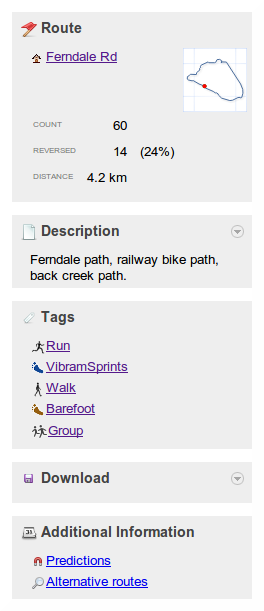
    On the activity detail page, there's a little link in the right hand side panel to "Upload Heart rate data file":

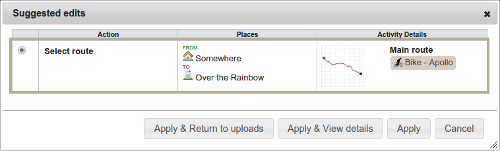
    Clicking that will give you a form where you can upload one or more heart rate log files in either Polar HRM or CSV formats:

    The original files aren't stored on the GPSLog Labs server though, so if you reprocess the log file (add a place, merge segments etc.) then you'll have to re-upload them.

- Tom
Filed under  //  changelog   graphs   heartrate   igo8   stats   upload  

Comments (0)

Mar 7 / 2:30am

Heart rate logging

Support for heart rate logging in GPSLog Labs has been added for Garmin devices that use the Garmin Training Center format (i.e. .TCX files).

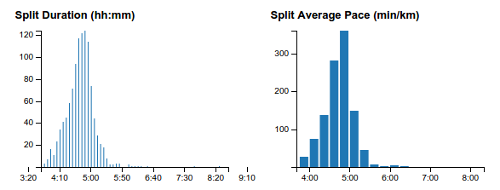
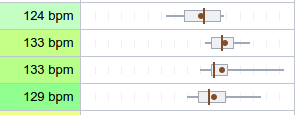
You can see graphs of your Heart Rate vs Time and a histogram of your heart rate on the activity detail page:


Heart rates will be repeated to fill in gaps if the readings occur less than once per second, up to a maximum of 5 minutes.

If you have a device that logs heart rates, and the graphs aren't showing up in GPSLog Labs, please let me know and I'll add support for it.

Note that this will only work for logs out doors where a latitude and longitude is recorded with the heart rate, so if you're using something like a Garmin EDGE705 in indoor mode, you won't be able to view your activity or heart rates.

If you don't have a GPS logger that records your heart rate at each point, you can still record average and maximum heart rates against your activity manually (i.e. based on a non-logging heart rate monitor strap.)

To switch heart rates on manually:
  1. Go to tags, and select a tag you want to record heart rates for (e.g. Running or Bike)
  2. Edit the tag, click the "Edit heart rates" checkbox.
  3. Now, when you go to activity tagged with that tag, you'll see the "heart rate" tab (this usually only shows up if your logger supports heart rates.)
  4. On that tab, the average and maximum heart rate values will show "edit", click that, type in the heart rate and click the save button.

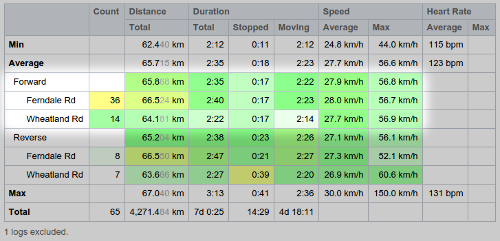
Once the system has heart rates recorded against your activity (either automatically or entered manually) they will show up in summary and comparison tables and graphs for routes and tags.

-- Tom

Filed under  //  changelog   devices   graphs   heartrate  

Comments (0)